Up next in 10


Check out more: https://www.hardreset.info/devices/maxcom/maxcom-smart-ms457-lte-strong/faq/bypass-google-verification/
Have you recently reset your smartphone, yet you forgot all the Google Account details? Maybe you bought a second-hand MAXCOM and it is locked? No matter what happened, here is the great solution. Watch and learn how to smoothly bypass Google Protection in your MAXCOM Smart MS457 Strong.
How to skip FRP in MAXCOM Smart MS457 Strong? How to bypass Google Verification in MAXCOM Smart MS457 Strong? How to skip Google Verification in MAXCOM Smart MS457 Strong? How to Bypass FRP in MAXCOM Smart MS457 Strong?
Follow us on Instagram ► https://www.instagram.com/hardreset.info/
Like us on Facebook ► https://www.facebook.com/hardresetinfo/
Tweet us on Twitter ► https://twitter.com/HardResetI/
Show More Show Less View Video Transcript
0:00
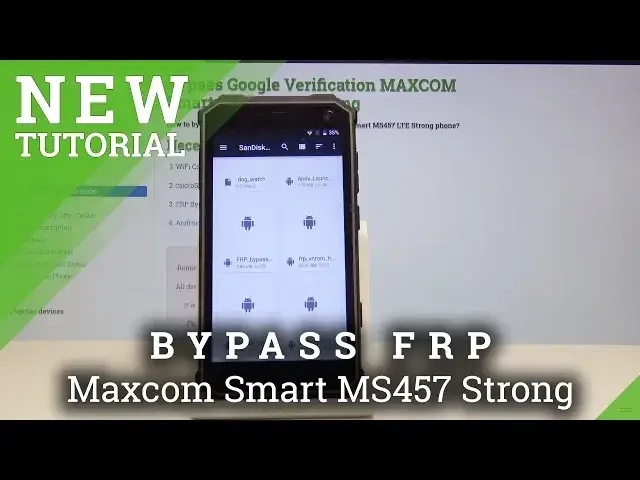
Welcome. In front of me is a MaxcomS.M. 457 and today I will show you how to bypass the Google
0:14
verification screen. And as you can see, the device in front of me is locked and otherwise I wouldn't
0:22
be able to progress the setup unless I know the email and the password for the email of a previous account
0:27
So to get started, we will need an SD card as I have one right here
0:34
And from a site, you will have to download the two programs that are linked in there right here
0:40
You can see in the background. All you need to do is just go to the Hard Reset Info site and type in the model of your device
0:47
and then a category on the site you will see bypass Google verification
0:52
And just download them and copy them to the card. So once you have that ready, you can take it
0:57
basically connect to the internet get this all sorted and let's put it in so
1:04
get a little anything to pull out the tray Okay, see the tray
1:34
Just going to put in the card in there and I'm going to slide it back in. Hmm
2:12
Oh, there we go. It wasn't all the way. So once you see this message, just tap on OK
2:23
Now you want to change the right storage. From there, you'll see the card that we have just put it in, which for me is the same disk
2:31
SD card. I'm just going to tap on it. And it will take me to the content of the SD card
2:37
So from here, when you scroll down, you will have, whoops, sorry, you will have
2:41
a bunch of apps that are showing up and two of them at least if your card is empty there
2:49
will be only two of them up here but I have a couple other ones but the ones that we copied are
2:55
right here that FRP VN ROM and then settings hardly set right here so begin with installing the FRP just tap on it and once you tap on it will tell you that you need to enable unknown sources so tap on settings and then check it on and confirm it and then you can go back
3:19
and tap on it once more now we can install it so tap on next and then install
3:25
and once it's done installing instead of opening we're just going to click on done
3:34
yeah so once you see this just click on done
3:55
and then install settings right here install and this time we want to open this so open it
4:06
and from here we're going to disable the in security we're going to disable find my device so
4:17
go on to security then device administrator and you all see find my device so check it off and then click
4:25
on the activate this device administrator and go back go back to the first setting page right
4:31
right here and then go into apps top three little dots up here next to the settings and then
4:41
show system so we can see the system once and scroll down to play services so
4:51
so there's Google Pay Services, tap on it, and then disable
5:02
Disable up. Go back. Oops, I'll do too many bucks. So we deactivated this, and we need to also deactivate the..
5:21
Oh, right, I'm not in the system. There we go. Now I should be able to find it
5:30
Okay, there it is Google Account Manager
5:42
Tap on this and then also disable, disable app and go back
5:49
let's go back to the first setting page right here and then scroll down to account right
5:55
here accounts then top on add account choose google and then let it load and all we need to do now
6:08
is just add a new google account so choose ones that for instance you already have or if you don have create one and then put it in here so I just going to use mine
6:39
okay there we go I messed up the password once so you need to put it again
6:49
so once you tap on X you will see this at Google Terms of Service so tap on I agree
6:54
then tap on open up again once that appears which will always appear and now we want to
7:08
go back to the first setting page and then reactivate the Google Play services. So let's go back to
7:15
apps right here. Again check the system apps and scroll down. Oops, a little too far I think
7:38
there's one google play service enable and then account manager also enable and then go back
7:53
and now all we need to do is just hold the power key select reboot confirm it and
8:02
and then the device power back on. Okay, so now let's go back to the setup process and as you all see now we can actually bypass the verification screen
8:32
okay now as you can see account added and it recognizes the account
8:56
that we have just added previously before they reset so we can now just stop on next
9:02
okay from here I just not going to do anything it a quick setup We going to perform a hard reset of this device anyway
9:27
just to remove any kind of residue from the previous account anyway
9:31
So once you get access to the home screen like we have right now
9:36
go into the settings and from the settings scroll all the way down into backup and reset
9:43
and then choose factory data reset. reset and reset phone erase everything and I'll let that hard reset go go through
9:52
and once it's finished we're going to go to the setup process once more and then
9:56
you can actually perform it normally as you would set up your device the way you like it
10:15
Okay, as you can see, we have the setup screens, I'm going to choose a different language
10:45
okay and I'm gonna go this process relatively quick without connecting to the
10:54
internet but you can do all that if you like so once you connect to the internet we'll
10:58
start looking for updates that's why I'm trying to skip it is gonna take again a
11:02
little bit of too late too much time to do it so not connecting I guess I cannot
11:13
do it without connecting so never mind so you can log into the Google as you can see or you can skip it it's not necessary anymore
11:41
now if you want to download stuff from like App Store and stuff later you might want to
11:46
log in so as you can see we could bypass that without actually logging in
11:57
and now we're back in the home screen with the device fully unlocked and that's basically
12:10
basically how you bypass the Google verification screen on the Macscom. So have you found this very helpful
12:16
Don't forget to hit like, subscribe and thanks for watching
#Science