0:00
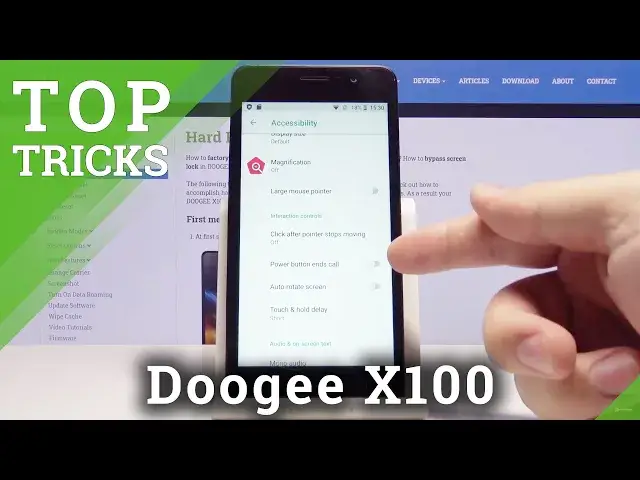
Welcome! In front of me I have the DOOGEE X100 and I'm gonna show you a few tricks
0:10
you can use on this device. Let's start by opening the settings. To do it swipe
0:15
upwards on the screen, scroll down and tap on the settings icon. In the settings
0:21
let's scroll down and tap on the security and location. Oh my bad let's go
0:27
back. In the security and location scroll down and here we have the first thing
0:32
It's called show passwords. You can turn it off and if you turn it off basically
0:37
whenever you type in the password it won't be visible. The letters won't
0:41
be visible. Whenever you type the letter while typing the password and
0:46
this option is turned on basically the letter will appear for a second
0:51
or two but if you turn it off it won't. Okay let's go back to settings. Now let's
0:59
select accessibility and here we have a few things. First let's tap on
1:04
magnification and this feature basically allows you to magnify the screen. Let's
1:11
tap on magnify with triple tap for example. Turn it on by tapping the slider
1:15
right here and now we can magnify our screen by tapping triple three times on
1:21
like this. We can also move around by using two fingers like that. Like this
1:32
Sometimes it hits one key and it doesn't want to work but basically like this. You
1:37
can also pinch in and pinch out two fingers to zoom in and zoom out and to
1:44
exit the magnification just triple tap on the screen again like that. Let's turn it
1:50
off and go back and in the accessibility let's scroll down. At the
1:57
bottom we have color inversion. You can turn it on and use it as a kinda cheaty
2:03
or makeshift dark mode. Basically it will inverse the colors on your screen so the
2:10
background will be black and this text will be white but be aware that in some
2:17
applications it might look weird. Okay. Now you can also turn on power button and scrolls and basically you can end the
2:31
call by pressing the power button right here. You can also change the font size
2:36
by tapping on font size and here you can select the size you like to use. Like that
2:45
You can do the same for the display size. You can select large, default or
2:52
small. Okay. Another thing I want to show you is a little trick. Whenever you have
3:02
problems with the reception or Internet like you can't connect or you don't have
3:08
like reception you can open the quick panel by swiping down twice from the top
3:13
of the screen. Here you can swipe left and turn on the AirPlay mode. This will
3:18
disconnect you from any cell towers you are connected to. Then wait for a couple
3:27
of seconds and turn it off to connect again to the cell towers. And this
3:34
hopefully will fix your reception issues. And I think that should be all. Thank you
3:44
for watching. If you found this video helpful please consider subscribing to
3:48
our channel and leaving the like on the video