Up next in 10


Learn more about CUBOT P40: https://www.hardreset.info/devices/cubot/cubot-p40/
In this video-guide we are showing a few tricks and hidden options in CUBOT P40. Are you looking for the best methods on how to improve the usage of CUBOT P40? Follow the instructions and you will be able to use more secret features and to become more advanced user of CUBOT P40.
How to enable the best tricks in CUBOT P40? What are the coolest features in CUBOT P40? How to locate top tricks in CUBOT P40? How to use tricks in CUBOT P40?
Follow us on Instagram ► https://www.instagram.com/hardreset.info
Like us on Facebook ► https://www.facebook.com/hardresetinfo/
Tweet us on Twitter ► https://twitter.com/HardResetI
Show More Show Less View Video Transcript
0:00
Welcome Infronomia have QBOT P40 and I'm going to show you a few tricks you can use on this device
0:13
Let's start by opening the settings to do it, swipe upwards on the screen, then tap on the settings icon
0:20
Once in settings, let's scroll down and tap on system. Here tap on gestures
0:27
And in here we have a few features I want to show you
0:31
First one is jump to camera. We can enable it or disable it right here by tapping the slider next to it
0:38
And once you enable it, this feature allows you to open the camera up by pressing the power
0:45
button twice. Quickly, like this. Let's go back and below the jump to camera we have system navigation
0:56
upon it. Here we can customize how are we going to navigate our system basically
1:03
Right now the free button navigation is selected and we have these three buttons at the bottom
1:09
of the screen, the recent apps button, home button and back button
1:17
We can tap on the settings icon right here to customize the settings for this bar
1:25
We can turn on navigation bar option. This arrow will appear on the bar, the navigation bar
1:33
We can tap on it to hide the navigation bar and to unhide it simply swipe upwards from the bottom
1:41
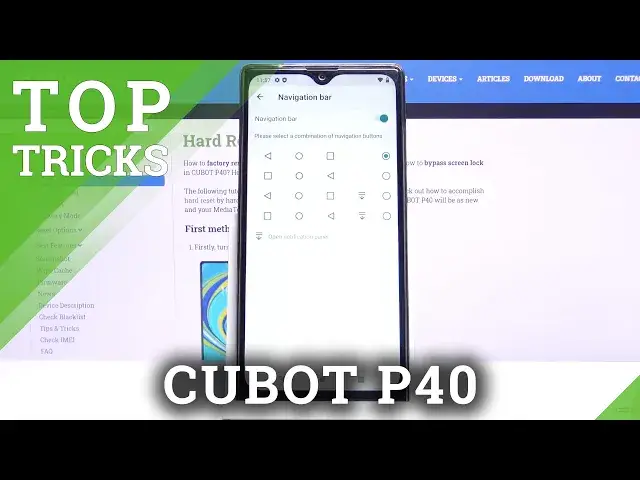
of the screen. And below we have also the combination of navigation buttons
1:48
Here we can select one. The last tool they have this icon
1:52
And this icon basically opens the notification panel So if you select this one you can open the notification panel by tapping on this icon right here Okay let go back
2:04
Right here we can also select gesture navigation. This navigation allows us to navigate our phone without these buttons
2:13
If you select it, we can navigate our phone now by swiping left, from the left or right side of the screen lace to
2:22
side of the screen to go back, like this. To go home, we just swipe upwards from the bottom of the screen
2:31
and to open the recent apps we swipe from the bottom of the screen and hold in the middle
2:36
Like that. We can also tap on Settings icon to adjust some settings
2:41
Basically we can adjust the sensitivity. And to do it simply swipe or tap on the slider, like that
2:50
Okay, let's go back. And another option is Prevent Ringing. We can tap on it
2:58
And this feature allows you to switch quickly to vibrate mode or mute mode by pressing the
3:05
power button and volume up button together. Right now we are in ringing mode and we can quickly switch to vibrate or mute
3:15
It depends what you select right here by pressing the power and volume up together
3:20
like this. And you can of course turn on and off this feature
3:26
right here by tapping the slider. Okay, let's go back to settings
3:31
In settings, let's select accessibility. And here we have another thing I want to show you
3:40
Scroll down and select magnification. This feature allows you to magnify your screen
3:48
We can select Magnify with triple. Select Magnify with triple tap, for example. Enable it right here And now we can zoom on our screen by triple tapping on it For example let trap triple tap right here to zoom in
4:03
We can also use two fingers to move around with this frame like this
4:08
And we can pinch in and pinch out to zoom even further or zoom out, like that
4:15
And to exit the magnification simply triple under on the screen again
4:21
screen again. Okay, let's go back. I'll turn this off first. Go back
4:29
Now let's tap on Magnify with Shortcut. And if you enable this option, here you can see how to open it
4:38
Basically you need to swipe up with two fingers and hold in the middle
4:46
So let's take two fingers, swipe up elevation. and hold in the middle like this
4:53
And again we can move around with two fingers. And pinch in and mouch out, to zoom and zoom out
5:01
And to exit it, simply swipe up from the bottom of the screen
5:07
and hold in the middle like this. Okay, let's go back. Here in the accessibility we have another little thing I want to show you
5:19
I want to show you this option, power button and call. This option is quite useful
5:25
Basically, it allows you to end the call by pressing the power button. And you can enable it and disable it right here
5:33
Okay, let's go back to home screen. And another thing I want to show you is split screen
5:39
Basically, we can open two apps at the same time. First, let's open one, for example, Chrome
5:46
Now let's go to recent apps. In the recent apps menu tap press and hold on the Chrome icon This menu will appear
6:01
Tap on speed screen. Now find the app you want to open
6:06
For example, Play Store. As you can see, we have two apps on the screen
6:13
And we can use them normally like this. To switch to another app, you can simply open the recent apps again, then you can find
6:26
the app in the recent apps menu or tap on the free space right here to go to home screen
6:31
and find the app you want to open. For example, let's open photos
6:37
To exit the split screen, press and hold on this frame between the apps with the white
6:44
bar and drag it to the bottom of the screen or to the top of the screen
6:49
Depends which app you want to close. Like that. Okay. Let's go back to homeskin
6:58
And last thing I want to show you is a little trick. When you have problems with internet or reception on your phone
7:06
you can open the quick panel and enable the airplane mode. To do it, simply tap on this icon
7:14
The phone will disconnect from any network and the SL tower that is connected
7:19
to and after a few seconds we can turn off the airplane mode and the phone will reconnect
7:25
to the networks and diesel towers and hopefully it's gonna fix your issues
7:33
And that should be all. Thank you for watching. If you found this video helpful, please consider subscribing to our channel and leaving the
7:42
like on the video. Thank you
Science