0:00
Welcome and for now let me say Oppo Reno 3 Pro and today I'll show you how to enable and set up
0:12
the portable hotspot. So to get started let's pull down the notification panel and for me the
0:18
hotspot is on the second page right here. Your position of this toggle might actually vary just
0:23
by a little bit depending on how many icons the system has added. But from here what you want to
0:31
first do is hold it so we can actually change the password or just gain the knowledge of what the
0:38
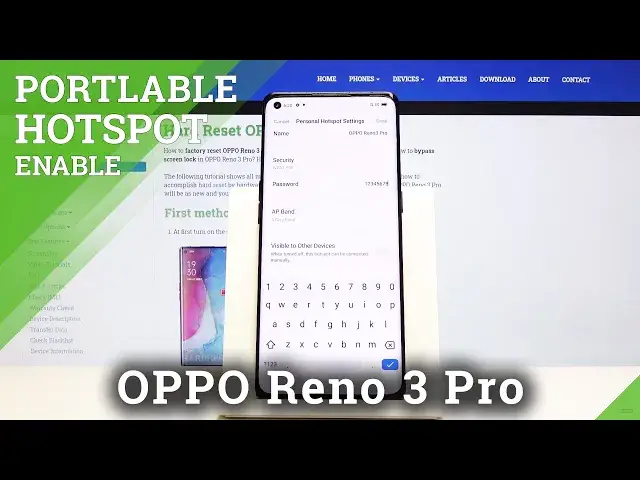
password is. So you will see it right here personal hotspot settings tap on it. Here's the name. This
0:45
is basically how your wi-fi will look like and the wi-fi list Oppo Reno 3 Pro that's basically the
0:50
name of the wi-fi then. You can change it to whatever you want. Then you have the password
0:57
which again you can either copy this one and give it to someone or you can tap on it and change it
1:04
to something that might be easier to remember. Now you can set it up whatever you
1:09
want as long as it has eight characters in length or more and from there you also have the AP band
1:16
so you can tap on it. I would suggest to put it on five but if your phone that for instance you're
1:24
trying to connect to wi-fi with doesn't see your name or the network that you have created
1:32
then it's probably too old of a device to connect to the five gigahertz version. So all you will
1:37
need to do is just go back here where we are and drop it down to 2.4. That is only in case that
1:44
your device can't see the five gigahertz one. Otherwise if you can this the five gigahertz one
1:50
is just better one it's going to be faster and overall just better. And then you have
1:58
visible to other devices. Now I would advise to keep that on. What it will do is if you disable this
2:05
and you basically enable the personal hotspot it won't be visible in the network list so if someone
2:11
wants to connect they'll need to scroll down to their list and go to add manually then put in the
2:18
exact name of the wi-fi that that basically they want to connect to so they need to put this in
2:25
and then also put in the password. So all this does is just makes it visible in the list
2:32
It's just easier to connect to it then. And once you have set it all up tap on save and you can
2:39
leave this and from now you can just simply go into the notifications panel and toggle it on and
2:45
off as well from here. So that is how you would set it up and if you found this very helpful
2:52
don't forget to hit like subscribe and thanks for watching