0:00
Welcome, in front of me is a Nokia G11 and today I'll show you how you can
0:06
enable and also set up your portable hotspot. Now we will start off with setting it up because without that you most likely
0:18
won't be able to utilize it. So to get started pull down your notification
0:22
panel, expand it and look for the toggle. So for me that toggle is nowhere visible
0:28
so I'm gonna need to quickly add it by tapping on this pencil
0:36
And as you can see in here it's located right at the bottom. So I'm gonna hold it
0:43
drag it over to the top, drop it and when you go back you can now see it right
0:49
here somewhere. So when you see the toggle now hold it again. This will take
0:54
you to the settings. So from here select Wi-Fi hotspot and you don't need to
0:59
change much in here. What I recommend changing or recommend or you basically
1:04
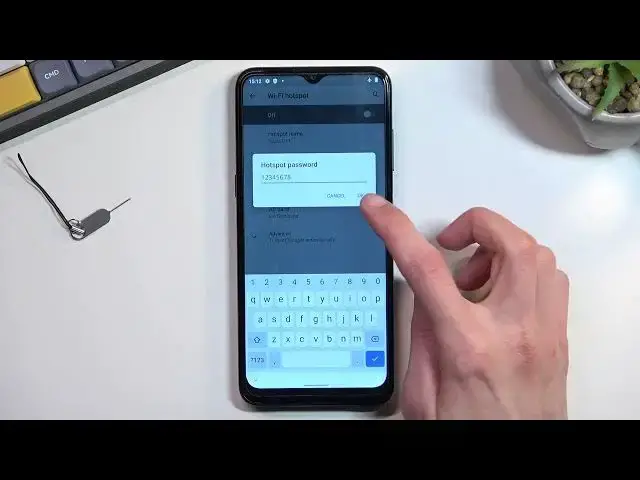
need to do is tap on the hotspot password. Either just to check the
1:09
password if you want to use the one that is generated by default or just to set
1:15
up your own. I do recommend setting up your own because this one is hard to
1:18
remember, hard to type in. So setting your own will obviously be much easier to
1:23
later on log into. So I'm gonna use something very simple. It does need to
1:28
have 8 characters in length. At which point you will be able to save it. Now
1:32
that can be letters or numbers. I'm just sticking with just numbers but you're
1:36
not only restricted to that. From there click on OK to save it. So that's
1:41
primarily the only thing that I would recommend changing. Obviously you can
1:45
change other things in here if you want to but if you're not sure what they do I
1:51
probably would recommend keeping them by with the default settings just because
1:56
that will ensure that your hotspot will always work whenever you want to utilize
2:00
it. So anyway from here you can quickly enable it by toggling on the check
2:06
checkmark right here or afterwards. That was weird. Or afterwards if you want to
2:15
enable and also disable it you can do it from here. Now right now it's on so when
2:20
I tap on it again it will turn off. But like I said you can turn it on from here
2:24
as well. And once it's on you can connect to your hotspot and utilize the network
2:30
Now keep in mind that the hotspot does use your mobile network. I'm gonna quickly
2:37
also check the Wi-Fi. So if I enable it it also uses the Wi-Fi antennas as well
2:43
to broadcast the mobile network. So when your hotspot is enabled you and whoever
2:49
else will be utilizing your hotspot or you're on your phone all that will be
2:54
done through your mobile network because Wi-Fi will be turned off as you can see
2:59
Once you disable your hotspot Wi-Fi will turn back on. Anyway if you found this
3:07
video helpful don't forget to hit like, subscribe and thanks for watching