0:00
Hi everyone, in front of me I've got a OnePlus 12R and let me share with you
0:04
how to enable the nightlight or eye comfort mode on this device
0:12
So let's start with a quick customization. Let's enter the settings and here we have to
0:16
scroll and find the display and brightness. Now let's enter eye comfort
0:21
and sleep option and as you can see here we've got some options which we can
0:25
customize. I will come back to the bedtime mode after a second. First of all
0:32
let's focus on the eye comfort. Let's turn it on just by tapping on the switcher and now the screen turns a little bit yellowish or amber. It is in
0:40
order to filter the blue light. It will be also much much easier for you to look
0:44
at the screen under dim light so if you're a night owl then I highly recommend to use this mode. We can change the intensity of the feature by going to
0:50
the left with this switcher. We can set it on the lowest side, on the low side so
0:55
it is really cool. It is not really that visible and of course by going to the
1:00
right we can set it on the highest setting so it is the most intensive
1:05
and in real life it is almost orange I would say. We can also change the display
1:11
effect so we can display the colors normally and of course they will be
1:15
slightly affected with the eye comfort mode so this yellow shield or the
1:21
black and white and everything will be displayed in monochromatic way. So it's
1:27
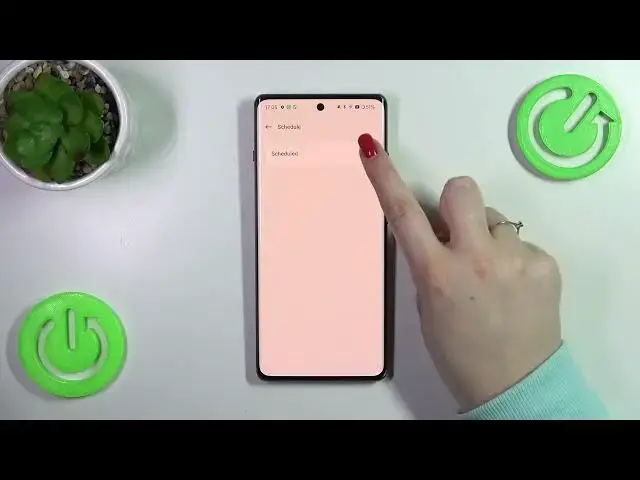
up to you of course. And the schedule option so just tap on it and tap on the
1:32
switcher and here we've got only one option which is which is kind of a new
1:37
thing because usually we had two options and the custom time so we can simply
1:42
choose the turn on and the turn off time and your device will of course apply
1:46
the eye comfort mode accordingly so that is why right now we've got the yellow
1:51
screen but and there is a second way the bedtime mode kind of which means
1:57
that your device will automatically decide when the sunsets and sunrises are
2:01
I believe it is location based and basically your device will automatically
2:07
switch to the eye comfort mode. You can turn it on right here it's of course up
2:13
to you whether you want to use it or not. All right so this that was the
2:17
customization of the eye comfort mode and in order to have much faster
2:21
access to it so if you want to quickly turn it on just unroll the top bar let's
2:25
unroll it fully to open all of those icons here and let's localize the eye
2:29
comfort. Let's simply tap on it and as you can see the shield will be applied
2:34
and of course you can turn it off the same way just by tapping on the eye comfort icon again. All right so that will be all thank you so much for
2:42
watching I hope that this video was helpful and if it was please hit the
2:46
subscribe button and leave the thumbs up