0:00
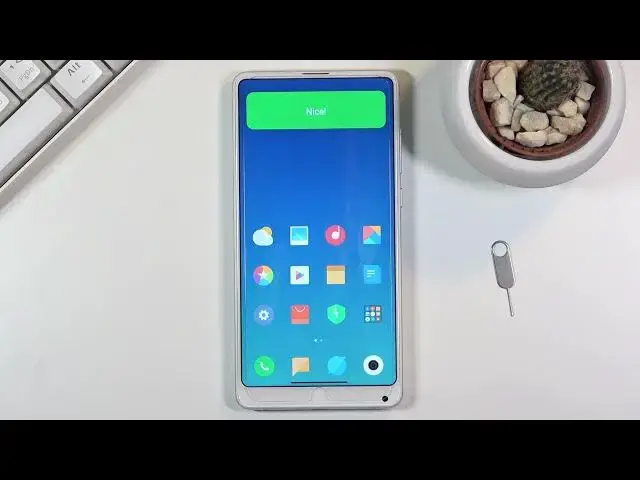
Welcome, my name is Xiaomi Mi Mix 2S and today I'll show you a couple tweaks and tricks you
0:13
can do on this phone. So we're going to begin with the dark mode which you can quickly enable through settings
0:21
under the display section. So you will find it right over here
0:28
Now the benefit of it here is it adds the ability for you to set up a schedule for it
0:33
so it will turn on and off depending on where you are, which is a really nice feature because
0:39
during the day I would consider light mode to be a little bit more suitable, better visible
0:44
especially outside, while dark mode is better during night time so you don't get blasted
0:49
with pure white bright light out of your phone. So you can simply enable it from here as a schedule, you can change the time if you want
0:59
to and this will switch between them depending on the time which is really nice
1:05
Now moving on to the next one, it's going to be the color scheme which again under the
1:09
display is right above the dark mode and you can see that by default it's set to auto but
1:16
we also have a saturated option and standard. You can quickly flip between those and see the difference between each one of them and
1:24
especially on the image right here. So you can pick whichever one suits you most
1:29
Personally I'm not a fan of these oversaturated displays so I'll go with the standard option here
1:36
Now moving on to the next one, it's going to be the full screen display or as you probably
1:41
will know it better, gesture navigation. So this device already looks really nice but those buttons at the bottom aren't really
1:50
doing it justice so all you need to do is go back to the settings, scroll all the way
1:55
down to additional settings, full screen display and switch it to gesture
2:04
Now it will bring us up with a guide on how to use them so we can learn it quickly but
2:09
basically we have swipe up from the bottom quickly, that's the home gesture, then swipe
2:15
up and hold to go to re-send and then swipe from either side to go back
2:21
As you can see when you swipe from the side it does bring up the arrow and there we go
2:28
Now if you have some kind of problems with the gesture navigation, as an example majority
2:33
of the time I see people struggling with the home gesture so the swipe up, people tend
2:39
to swipe up on the screen up which isn't necessarily the correct way to go about it
2:44
What you want to do is swipe off of the screen up. As you can see this will basically ensure that it works every time
2:53
So if you have a problem with this that's what I recommend you to try and do
2:57
Now moving on to the next option, it's going to be the categories in your app tray
3:03
As you can see by default we have a bunch of them. I do consider this to be a really nice touch from Xiaomi to include categories so we don't
3:10
have like all the apps smack in the middle here, especially when you have a lot of them
3:14
it becomes really annoying. So they did add categories. As you can see some of them might not be the greatest or like you might not want most of them
3:26
So what you can do is go into the settings. From here we're going to go into home screen section right over here, app drawer, and then
3:38
manage app categories. And as you can see you can simply remove these categories if you don't want them, create
3:45
your own custom ones. So you just type in a name that you want to create of a category
3:52
So I'll go stuff. Name here
4:01
And from here simply select the apps that you want in there. So you just kind of start tapping on the apps that you want
4:07
From there tap on the checkmark and voila we have created, or we should have created
4:12
a stuff, there we go, category. So now if we leave this and go into our app tray you will see stuff folder or stuff category
4:25
So it's a really nice way for you to organize apps, keep them separated, you can create
4:30
your own category which you can add specific apps that you just want there
4:35
And also you can arrange the order of them which is another nice thing
4:41
And also you can tap right there to quickly access it if you want to change it
4:46
And moving on to the last option which I wanted to show which will be probably more designated
4:52
for the elderly people, it is the light mode. So let me quickly enable it
4:57
So all you need to do is go into the settings, scroll down to special features and choose
5:02
light mode, turn it on and you will see, there we go, once it turns on it makes basically
5:08
all the apps huge and limits the device, it removes gestures, so it changes a bunch of
5:15
different settings as you can see, removes toggles from notifications, makes basically
5:22
all the font bigger, all the toggles bigger and makes it easier to use
5:29
So even though it's called light mode which I'm not exactly sure why, I guess it's light
5:33
on features, which makes it I guess easier to use for elderly people because you don't
5:40
have as much stuff on your screen. As you can see the first homepage is filled with what I would call essential applications
5:48
messages, dialer, camera, settings, store, gallery, weather and music and that's all
5:54
you have. And then on the other pages you do have additional setting or additional apps, so I guess Chrome
6:01
should be probably essential as well. And then everything else is just kind of hidden away
6:08
So like I said, good option for people that struggle with the device, for elderly people
6:14
or maybe visually impaired ones. But yeah, that being said, this would conclude all the tweaks and tricks that I wanted to
6:20
share and if you found them helpful, don't forget to hit like, subscribe and thanks for watching