0:00
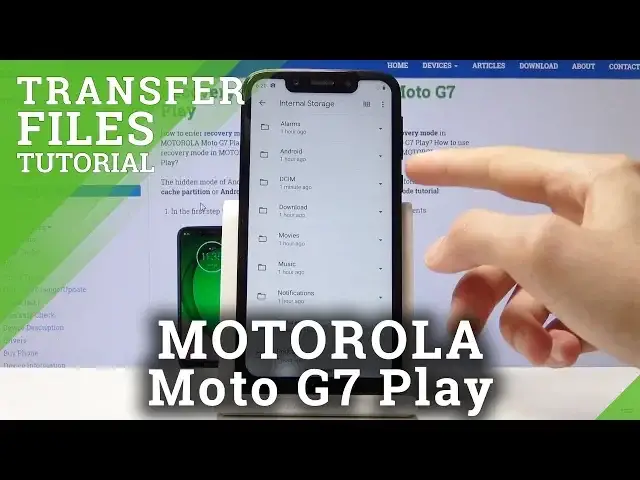
Welcome, I'm from Museum Motorola Moto G7 Play and today I'll show you how to transfer
0:10
photos, videos or any kind of other files from the phone to an SD card or vice versa
0:17
So to get started open up your file manager app, which let me just locate it
0:25
There it is, so files right here, continue and then when you scroll down to the bottom
0:38
you'll find your two different storages, so internal storage is the phone and then whatever
0:43
this is, it's the SD card. It's supposed to say SanDisk but for some reason it doesn't recognize it, I don't know why
0:51
From here, if you go to the internal storage, your photos or videos will be located under
0:56
DCIM as long as they were captured with the device. Pictures will have screenshots, which should have a couple, there it is, and downloads
1:08
will have anything that you have downloaded. And to move it all you need to do is just find whatever that is, so for me it's gonna
1:15
be the photos that I have taken. You can hold it, it gets selected like so, you can add others from now by just tapping
1:21
on them or if you have an entire folder that you want to move of photos or videos or whatever
1:26
that is that you want to move, you can just hold the folder itself and then stop right
1:32
here and you have the copy or move option, so I'm just gonna select move, it gives a
1:38
pop out and from here you can select where you want to move it, so you can keep it on
1:42
the phone itself or move it to the SD card but because for this purpose I'm moving it
1:47
to a different location, to the SD card, that's what I'm gonna choose and it opens up the
1:53
SD card itself and from here you can either move it right here or tap on add new folder
2:00
to create a new folder, tap on allow, let's just call it DCIM to keep it consistent and
2:10
then you have move to folder and it will immediately move it to this folder that I
2:14
have just created. So if we go back to here, you will see that there are the photos that I have just moved
2:24
and the same way you will move any kind of other files, it doesn't need to be photos
2:29
or videos, it basically works for any kind of other file and if you found this video
2:35
helpful, don't forget to hit like, subscribe and thanks for watching