0:00
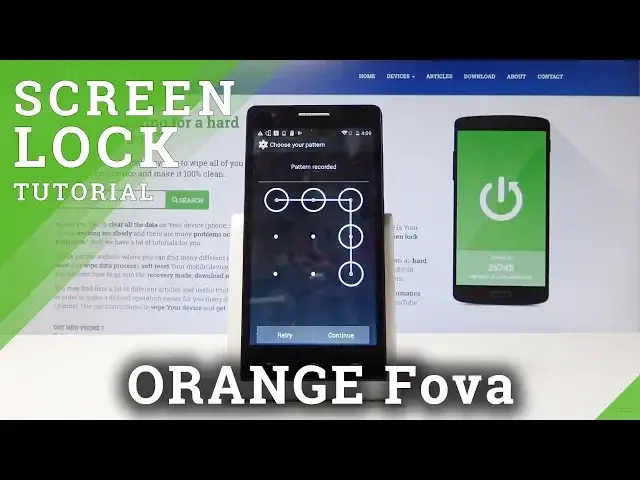
And for me is an orange photo and today I will show you how to add a lock screen
0:11
on your device to make it more secure and start off we'll need to go into the
0:15
settings so tap on apps and then choose settings then scroll down into security
0:20
which is all the way on the bottom and right here security and then you have
0:28
screen security and screen lock it's right now to slide which means that
0:33
there is nothing basically securing it but you have options for something like
0:37
face unlock pattern pin or password and to explain all of them password will be
0:42
a letters and numbers pin would be a four digit basically numbers and pattern
0:49
is a little drawing on basically following the dots face unlock I will
0:54
probably use your camera as phones do now and slide is nothing and so is none
1:02
so for this we're gonna use actually pattern and as you can see that's how
1:08
you put it and you need to draw it twice once as a first first drawing and then
1:14
we draw the same one so there is no no kind of miss mistakes so you don't like
1:21
your device and once you're satisfied you can just up and confirm and now once
1:26
you like the device it will be confronted with this thing and you need
1:32
to put in the pattern that you have set to actually gain access to your phone
1:37
and you can also change it if you like as long as you draw the pattern again to
1:41
unlock it and you can change it to pin or other things so just select like this
1:46
and for instance choose a pin firm and put it in again and same goes again if
1:54
you try to unlock it now you have to put in the pen like so so that is basically
2:01
how you set up some kind of lock screen and if you found this video helpful don't forget to hit like subscribe and thanks for watching