0:00
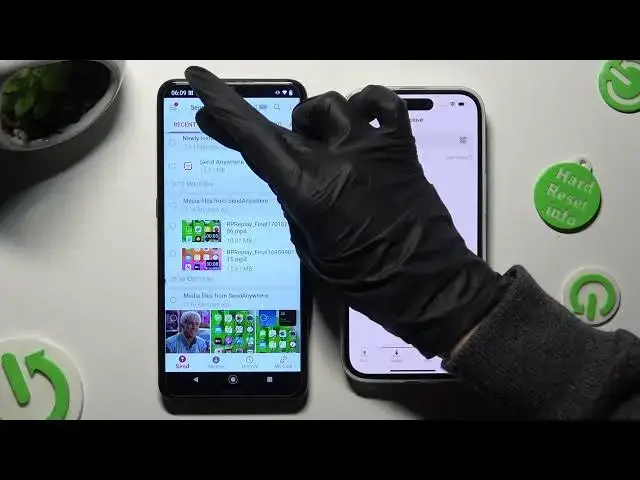
Hi! Today I would like to show you how you can transfer files from an Android device to iPhone 15
0:15
Begin by opening PlayStar on an Android and App Store on iPhone
0:24
Then download free app, called Send Anywhere and to an Android. ready open it
0:34
Now in order to use it you need to set it up
0:41
Let's start with an Android Click on I agree and I acknowledge at the top
0:52
Then select confirm and allow
1:04
Now on iPhone, click on wherever you wish to in track activity pop-up
1:13
In my case Ask app not to track Then click on allow full access in photo library one and tap on wherever you want to in notifications one
1:32
In my case, don't allow. In this window about new updates, you can select not now if you want to
1:45
To close it, hit OK on both smartphones. And if you see this notifications pop up on an iPhone, just tap on Council
2:03
Finally, you can click on Close in white pop-up at the top of an Android
2:12
and click on Send at the bottom left corner bed. When you done, choose Receive right next to Send at the bottom of iPhone
2:26
Then go back to an Android and use all of those categories available at the top
2:34
to select all files that you wish to transfer Like photos videos
2:50
audio files, Some apps data, and even contacts and files
3:02
To use the last two categories, you need to click on contact
3:06
on contacts, select allow and click on allow in this pop-up. In audio, sorry, in files section though, you need to tap on allow, and then hit gray sweater
3:27
next to allow access to manage all files. Then go back. When you're ready, just click on send next to selected at the bottom
3:44
Then choose Got it in here's some tip pop-up and decide which connection way is better for you
3:53
If you want to connect by scanning this QR code click on the scanning icon next to input key on iPhone Then allow camera access in the pop and point your iPhone camera add the code
4:17
If you prefer to input this key, tap on input key section, type in all of those numbers in correct
4:28
order and hit receive in order to connect
4:37
So when I do that, as you can see, all of my files were successfully sent
4:48
If you see this pop-up about personalizing your ad experience, just click on wherever you
4:56
and tap on close this window. Thanks so much for watching if you enjoyed this video
5:05
Don't forget to leave a like, comment and subscribe. Bye