0:00
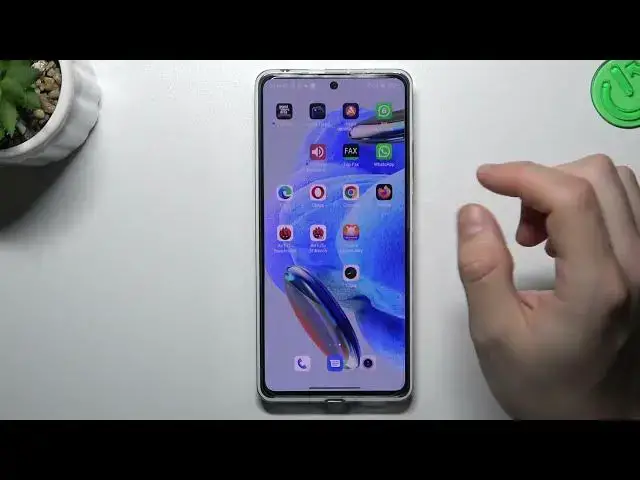
Welcome to my channel. Today I'm going to show you how you can customize and draw around your home screen in the Redmi Note 12 Pro
0:09
So to start if you open the home screen settings just hold the finger on the empty place on your display
0:15
And as you can see now we are in the settings. Ok, we can start from opening the gear icon and transition effect
0:21
This is an effect when you swiping the pages on your home screen. So if you want to check the preview of it just tap on the side road one, choose your favorite
0:29
and click done. That's it. Now we can go to the home screen layout
0:35
If you want to change the amount of the apps in the rows and the columns just choose one of them
0:40
And we can go to the more. Ok, minus one screen, this is a screen on your left side always in your home screen
0:47
And you can setup here the Google Discover with the Google News, Google search bar
0:54
You can choose also upvote or just disable it. If you want to change the animation speed to make your phone a little bit faster just set up it to the fast and that's it
1:09
There is a place where you can change the system navigation from the buttons, gestures and vice versa
1:15
And icon size, just adjust it your own way this slider. I always prefer to have a small icons
1:24
Ok, and that's it for displays. And now it's time for the widgets
1:29
So if you want to add a new widget tap on the widgets and just choose one of them
1:33
Like this one, just tap on the add and you can change the place for it by holding it and just choose the place for it on your home screen
1:44
Click accept and that's it. If you want to remove it just hold the finger, choose remove and this is how it works
1:50
Ok, the next one folders. If you want to make a new folder just hold it up and drop onto another
1:55
You can change the folder name here. If you want to remove the folder just take out the apps and bring them to the home screen back
2:06
And that's it. Thanks for the watching, leave us a subscribe, a comment and goodbye