0:00
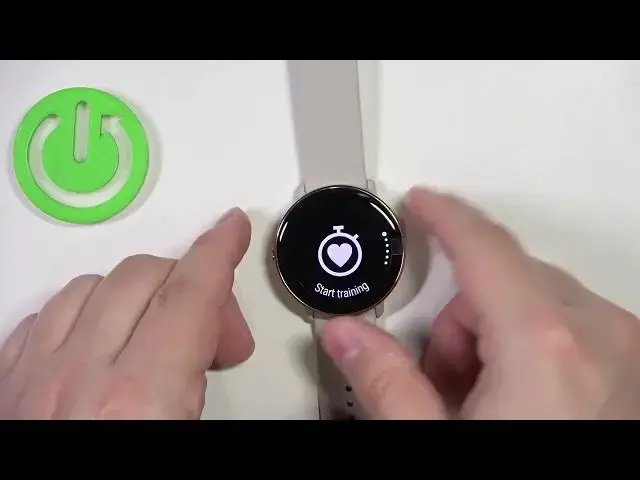
Welcome! In front of me I have Polar Ignite 3 and I'm gonna show you how to
0:04
track these steps on this smartwatch. First we need to wake up the screen on our watch and you can do it by pressing
0:15
the side button. After you wake up the screen you should see the current watch face, the home screen and you can swipe left on the screen to scroll through the
0:23
list of widgets. Now scroll through the list and find the activity widget. As you
0:28
can see here we have the amounts of steps we took during the day. You can
0:33
also tap on this widget to open more specific statistics. We have the amounts
0:39
of steps, the percentage of the goal we have set, the average time and also you
0:47
have the heart rate and stuff like that. Okay, you can also check these steps by
0:56
basically setting them on the watch face. So you can go to the settings, so
1:02
open the menu by pressing the side button, scroll through the menu, find the
1:05
settings icon, then scroll down, find the watch face option and tap on it and now
1:12
we can set up our watch face and basically we can change the layout and
1:19
stuff like that but let's select the first one just for the sake of the video
1:23
then we can select the background and then we can select the theme and finally we
1:27
can select the widgets and once you're able to select widgets you can tap on
1:31
one and then find the steps widget and add it and you can add anything else you
1:37
want and once you have the step widget on your watch face you can quickly check
1:43
amounts of steps you've taken by simply waking up the screen on your watch. So
1:49
I'm gonna set the last widget like that and then I'm gonna tap on the check mark
1:55
as you can see now we have these steps on the widget or rather not on the
1:59
widget but on the watch face and here we have it and we can check the steps and we can tap on the step widget on the watch face to open the activity page
2:07
Okay, and that's how you track these steps on this watch. Thank you for
2:12
watching. If you found this video helpful, please consider subscribing to our
2:16
channel and leaving a like on the video