0:00
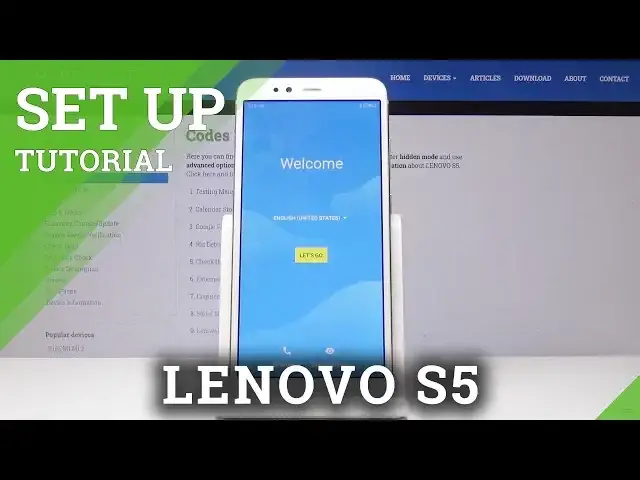
Here I've got Lenovo S5 and let me show you how to set up the following device
0:09
So at first, let's select the language that you would like to have your device in
0:13
As you can see here, you've got plenty of possibilities, but I will stay with English
0:16
So let's click on Let's go, and now you can insert your SIM card if you want to, but I
0:20
will skip it for now. It can be done later. And here you can copy your data from previous phone or you can set it up as a new one
0:27
So let me click on Setup as a new one, because I would like to have it as a brand new with
0:31
no data included. Now connect your device to Wi-Fi. This is mine
0:37
Wait a couple of seconds. And now you can log in with your Google account if you have one
0:44
And if you don't have it, you can either skip this step or create a new account
0:50
But I will log in with mine. And then click on Next
0:59
Now it's time to enter the password, so let me do it off the screen
1:06
And as only it is entered, you can click on Next. And here it's time to come along with all Google Terms of Service, Google Play Terms
1:15
of Service, and also Privacy Policy. And if you agree with all the above conditions, smoothly click on I agree
1:26
And now you can add fingerprint if you want to, but I will skip it for now
1:33
And also you can come along with all Google services. You can switch them off if you want to, but I will leave all of them
1:39
Let me click on I agree. And now you can also come along with your Google Assistant
1:48
And if you want, you can activate assistant permission to help you, but I will switch
1:53
it off right now. And also now you can add some other email account if you want to, but I don't want
1:59
to do it, so all is set. And also you can activate location consent if you want to
2:09
And this is it. You've just set up your device and now you can use it in a normal way
2:14
So thank you for watching. Please subscribe our channel and leave the thumbs up