Up next in 10


Find more info about SAMSUNG Galaxy A20e:
https://www.hardreset.info/devices/samsung/samsung-galaxy-a20e/
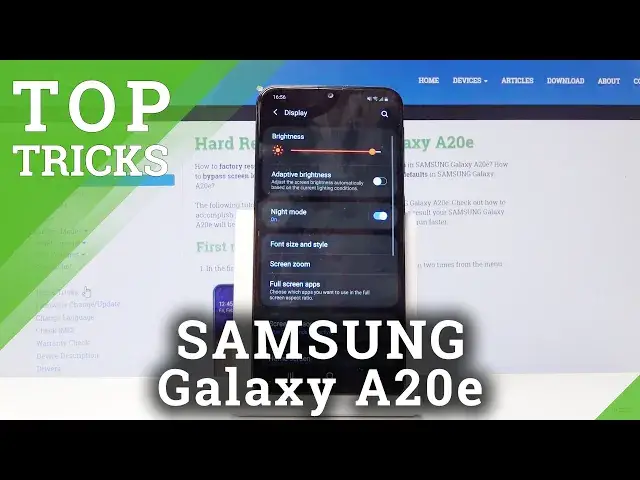
We would like to present the best apps available on your SAMSUNG Galaxy A20e. If you wish to find out super features and cool options then follow the attached instructions and make the usage of your Galaxy device easier and comfier. Let’s use the following tutorial and enable hidden options in SAMSUNG Galaxy A20e smoothly.
How to get access to secret options in SAMSUNG Galaxy A20e? How to get the best solutions in SAMSUNG Galaxy A20e? How to activate super feature in SAMSUNG Galaxy A20e? Where to find the best apps in SAMSUNG Galaxy A20e? How to enable hidden options in SAMSUNG Galaxy A20e?
Follow us on Instagram ► https://www.instagram.com/hardreset.info
Like us on Facebook ► https://www.facebook.com/hardresetinfo/
Tweet us on Twitter ► https://twitter.com/HardResetI
Show More Show Less View Video Transcript
0:00
Welcome, in front of me is a Samsung Galaxy A20e and today I will share with you a couple
0:10
tweaks and tricks that I can do on this device. So we're gonna begin with the night mode or well more of a dark mode for the display which
0:18
will turn basically the entire theme of the device to dark. So you would go into settings and then display and you'll find night mode, enable that and
0:27
everything should go dark. So now if I leave this and pull down the notification panel I can see that it's dark and not as
0:38
intrusive especially when you're trying to use the phone at night. So that is the first thing, now moving on we're gonna go into another thing that I personally
0:46
like at least on the Samsungs which is the quick open notification panel and basically
0:51
it allows you to pull down notification panel from anywhere on the screen as long as you're
0:55
swiping down. Usually when you try to do this it opens up apps, you swipe up and does the same thing
1:01
So to change that we'll go into the settings again and from settings under the display
1:06
let me just disable that for now, display and then we're gonna go into the home screen
1:14
right here and I believe it's at the bottom, there it is, quick open notification panel
1:20
when you enable that and actually leave you can now swipe from anywhere to open notification
1:26
panel and you still can access the app drawer by just swiping up like so
1:33
So that's another one, now moving on we're gonna go into the hiding password option and
1:40
in my opinion that's probably one of the things that should be checked from the beginning
1:47
but basically what it does is if I go into here and just as an example I want to have
1:56
some kind of network that I can show on but hello please show me network so I can actually
2:01
demonstrate this but you probably know how you would type in a password
2:06
When you type in a password it shows you those dots but every time you type in a letter it
2:13
basically shows that letter for a brief moment so you can actually remove this and for some
2:18
reason this device can't connect to or show me the networks that are around here so I
2:24
just skip showing it and go into straight turning it on. So you go into the settings and then go into biometrics and security, scroll down, other
2:37
security settings, scroll down, where is it, oh there it is, make password visible so it's
2:44
at the top here and you want to disable that, no one wants to see password or showing show
2:51
password so like I said this should be basically disabled from the beginning
2:57
So now moving on another thing that I want to show is window panning and it's located
3:01
also here so let's go back to other and at the bottom you have window panning or pan
3:12
window and when you enable that you can actually tap on it and it gives you basically a showcase
3:17
how it works. You can also use screen lock type to unpan and this will allow you to basically pan with
3:24
a pattern so if someone wants to leave the app that you pan they will also have to provide
3:31
the pattern, passcode or whatever you have set to unpin it. And basically how it works is when you go into recent apps and you tap on the icon right
3:45
there on the app you have pinned this app, you tap on it, it gives you a little message
3:50
on how to unpin it and then if someone basically tries to, it's usually used for showing someone
3:58
something but you don't want them to access different parts of your device so you can
4:04
basically keep it private and for instance you want to show them the setting now they
4:09
can't really leave it. They can stay in the settings itself but they can't leave it and if they know the passcode
4:17
or well the pattern on how to unpin it like so then they can do that but you can check
4:23
it on so they would have to provide a pattern to undo it
4:28
So just a way of how you want to set it up. Now moving on we're going to go into the app shortcuts and this will allow you to change
4:35
the shortcuts that are right here on the lock screen so those two, we have phone and camera
4:41
You can change them up to basically do something else. So you'd go into the settings again and lock screen
4:50
So just find lock screen, there it is and then app shortcuts right here and you can
4:58
choose the left and the right and once you tap on it it gives you all the apps that you
5:03
have installed. Now I don't really have any additional apps installed so those are all the default ones
5:09
but you can as you can see clearly set any kind of other app if you wish so
5:13
So for instance you could choose Chrome and now if I tap here I can go straight to Chrome
5:21
from my lock screen and just a way for you to for instance add a app that you use frequently
5:26
so you can access it quicker. Now moving on to another one will be the gestures
5:34
So normally you have the buttons right here and you can actually make them into gesture
5:39
base, pseudo gesture base, it's not really full like other devices but when you go into
5:45
notification panel as I just did so pull it down and go to the next page you will have
5:50
here navigation bar. You disable that and basically makes the bars that you had previously into or buttons into
5:59
those tiny faint bars and they still act the same as though you'd have the buttons but
6:05
instead of tapping on it you have to slide it. So this is basically the back button which I have nowhere to go back from, this is home
6:14
and this is recent. So I would go to recent, home so they still work the same way as previously it's just
6:23
you don't have the buttons like you would have right now. Now next thing that I want to share is the game launcher and this is more for people
6:32
that actually play games on their phone and it will do couple things, it has couple features
6:38
so number one it can remove all the games from your app drawer so they're neatly organized
6:44
all in the app itself. Number two it can boost the performance of the app by prioritizing performance instead
6:49
of let's say battery and also block notifications so you're not getting spammed or called while
6:56
you're trying to do something or play something. And to enable it you will have to go into the settings because by default it is actually
7:04
not visible here like on the S series. So you'd go into the settings and from settings go to advanced features so on the bottom it
7:15
was, alright it's advanced features and you have it right here, game launcher, enable
7:20
that, add and we can actually leave it here, go to the game launcher right here and just
7:29
agree, start and I'm not gonna update, you should probably update though
7:38
And basically the first thing you will have is hide games and apps screen so you can choose
7:43
hide games and then all the games will be accessible right here and they will disappear
7:49
from your home screen and your app drawer. And additionally you have the two other options right here so number one the performance slider
7:56
you can choose either to focus on power saving like I said, balance so basically in between
8:01
or focus on performance. And then you also have the muting so you are not interrupted by the notifications
8:12
So that is basically a good thing if you like playing games
8:16
Now another thing that I want to show is the reduced animation and I believe Samsung has
8:21
its own reduced animation but if it does there's, I know one device that has it and it's fairly
8:26
garbage so I don't really advise using it, it doesn't really do much but basically every
8:32
Android has built in animation option, I just hid it in the developer options
8:40
So to enable it you would have to actually enable first developer options and to do that we're gonna go into settings, about phone, then go into software information, go all
8:49
the way down, or not all the way down, there it is, build number and tap on that seven times
8:56
Now if you have some kind of pattern set it will force you to basically put in the pattern
9:00
before it enables the developer options but I don't have it so it automatically got enabled
9:07
and now if I go back it should be somewhere right here in the main settings page, developer
9:13
options then you can scroll from here down a little bit past halfway then you will find
9:17
this window animation scale, transition animation scale and animation duration scale. Now each one of them corresponds to different animation, I would advise to switch them all
9:28
to the same speed so it's not like one animation is longer one shorter but as you can see you
9:34
can basically set it to half speed, completely remove animations or make them longer
9:39
Now probably half speed is the best option right there, everything is still animated
9:44
but it's just twice as fast as it was previously so it will improve in how snappy the device feels
9:52
Now moving on we're gonna go into another option which is split screen and the other
9:59
one is called, let me see, actually open up something so I can remember how the other
10:04
one is called. So when you tap on the icon right there it gives you the split screen and pop-up view
10:12
Now both of them are super handy and both of them basically work a little bit differently
10:19
So split screen will open up the app in a split screen view so you basically have the
10:24
display divided and you can actually use YouTube in this mode so you could listen to music
10:31
without actually it having paused the music or whatever that is that you're trying to
10:36
listen to while doing some other stuff. So let me just completely mute it so you could play some video while continue to do something here
10:49
Now normally you know that it will basically turn off video or pause it so yeah, so that's
10:56
one thing and the other thing is, let me just close this, is the pinning, or not pinning
11:02
but what is it, pop-up view. Basically does the same thing as or similar thing as split screen but actually gives you
11:11
a resizable window that you can resize as you can see and also drag around, play as
11:17
well and while it's playing you can actually move it basically almost all the way out and
11:24
basically continue to use your device with it playing somewhere on the side and not actually
11:29
getting in your way. Now keep in mind that if you actually minimize it to be a little up head it will pause the
11:35
video so I think it's this button right here yeah. So if you do this it actually does pause the video as you can see now
11:44
But yeah that will basically conclude all the tweaks and tricks that I wanted to share and if you found any of them helpful don't forget to hit like, subscribe and thanks for watching
#Mobile Apps & Add-Ons
#Science