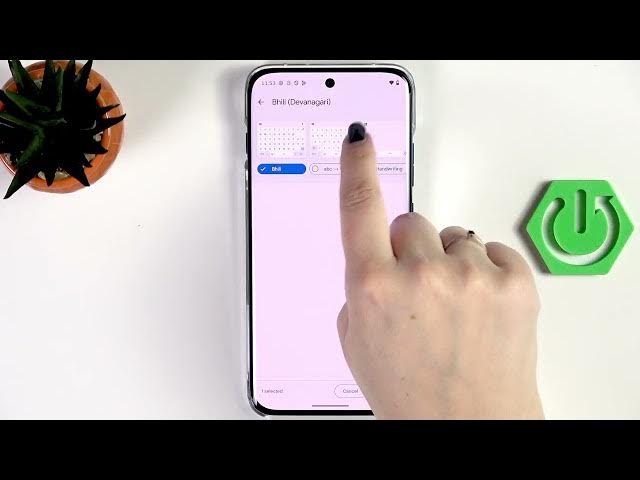

MOTOROLA Edge 70 Pro - How to Change Keyboard Language
Jun 10, 2026

In this video you will learn how to change the keyboard language on the MOTOROLA Edge 70 Pro. I show how to open any app to bring up the keyboard, access the keyboard settings (gear or four-dots icon), add a new language from the full list, choose region and keyboard layout, and apply it instantly. You will also see how to switch between multiple languages using the globe (language) key, how the space bar shows the current language, and how to remove a language when you no longer need it. This guide is simple and great for beginners and non-native English speakers who want to manage keyboards and layouts on their Edge 70 Pro.
How to change keyboard language on MOTOROLA Edge 70 Pro?
How to add a keyboard language on MOTOROLA Edge 70 Pro?
How to switch keyboard language using the globe key on MOTOROLA Edge 70 Pro?
0:00 Intro - what we're changing and where to start
0:06 Open an app to bring up the keyboard
0:24 Access keyboard settings via the top panel or four-dots menu
0:48 Add keyboard - browse full list of available languages
1:14 Choose region and keyboard layout, then tap Done
1:44 How to switch languages using the globe key and language hint on space bar
2:15 How to remove a language (Edit → Remove)
2:33 Outro and subscribe request
#Motorola #Edge70Pro #KeyboardLanguage #AndroidKeyboard
Find out more:
https://www.hardreset.info/devices/motorola/motorola-edge-70-pro/change-keyboard-language/
Follow us on Instagram ► https://www.instagram.com/hardreset.info
Like us on Facebook ► https://www.facebook.com/hardresetinfo/
Tweet us on Twitter ► https://twitter.com/HardResetI
Support us on TikTok ► https://www.tiktok.com/@hardreset.info
Use Reset Guides for many popular Apps ► https://www.hardreset.info/apps/apps/
Show More Show Less