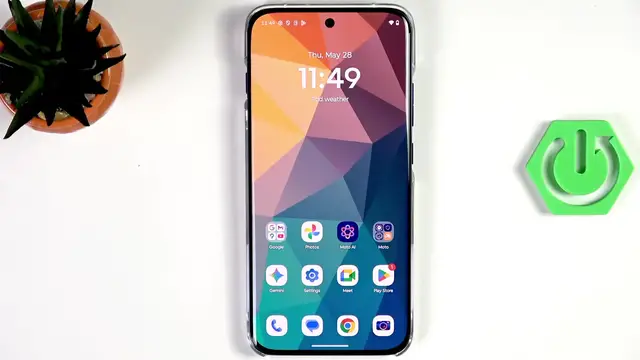

MOTOROLA Edge 70 Pro - How to Change Language
Jun 10, 2026

In this video I show how to change the system language on the MOTOROLA Edge 70 Pro step by step. If you accidentally switched your phone to a language you don’t understand, I’ll walk you through opening Settings, finding System → Language & region, adding a new language, choosing the correct region, and making it the primary language. You’ll also see how to remove extra languages from the list. These simple steps work on most Android builds similar to Motorola’s interface and are perfect for quick fixes.
How to change language on MOTOROLA Edge 70 Pro?
How to add a language on MOTOROLA Edge 70 Pro?
How to remove a language on MOTOROLA Edge 70 Pro?
0:00 Intro - what this video covers
0:35 Open Settings (gear icon)
0:54 Go to System → Language & region
1:13 Open System languages and tap + to add
1:31 Choose language and select region
1:50 Drag new language to top and tap Change to apply
2:18 How to remove languages (three dots → Remove)
2:35 Outro and subscribe
#MOTOROLA #Edge70Pro #ChangeLanguage #AndroidTips
Find out more:
https://www.hardreset.info/devices/motorola/motorola-edge-70-pro/change-language/
Follow us on Instagram ► https://www.instagram.com/hardreset.info
Like us on Facebook ► https://www.facebook.com/hardresetinfo/
Tweet us on Twitter ► https://twitter.com/HardResetI
Support us on TikTok ► https://www.tiktok.com/@hardreset.info
Use Reset Guides for many popular Apps ► https://www.hardreset.info/apps/apps/
Show More Show Less