0:00
Welcome! Efonom is a Blue Vivo One Plus from 2019 and today I will show you how to
0:10
transfer files from the device to a SD card or vice versa. So to get started you
0:16
want to open up your file manager app so let's just find that. There it is files
0:24
so this thing right here. Okay continue and from here we want to browse the
0:35
files themselves so let's see this is gonna be show storage devices there we
0:41
go and here you can see now the storage devices on the bottom. Now if when it
0:47
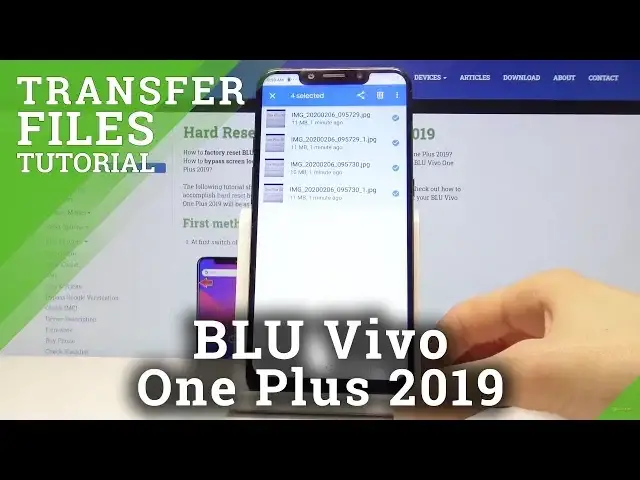
comes down to finding your photos and stuff like that we're gonna go for instance to internal storage and pictures and videos that have captured
0:55
with the device can be found always under DCIM folder so for instance right
1:00
here there is some pictures that I have taken as an example so I can have
1:03
something to transfer and videos should be here too if there were any. Then
1:08
pictures as a folder will have any kind of screenshots. Downloads will contain
1:13
any kind of file that you have downloaded using either your web browser or email stuff like that so they're all will be located here and
1:20
anything else is usually placed by the user and it's a respectable folder. So
1:26
find whatever that is you want to transfer which I like I said I'm gonna
1:29
be transferring the photos and now all you need to do is hold the file like I
1:34
just did and it becomes selected and then you can tap on additional ones to
1:37
select them as well to add to them. Now once you have selected all you need you
1:43
can then tap on the three dots right here and you have move to or copy to so
1:48
choose whichever one you want. Now one thing to keep in mind if you have like
1:52
entire instance folder full of photos that you want to move you don't actually
1:56
need to select all of them you can either just choose to select all or go
2:00
back and just select the entire folder itself and all of its content will be
2:05
moved along with the folder. So I'm gonna go with this option so folder selected
2:10
and now I want to for instance move it so by choosing move I will actually
2:15
remove it from where it is right now to a new location and then once you tap on
2:22
move or copy it will give you an option where or choice where you want to move
2:26
it to or copy so you have the internal storage and the SD card. Now the photos
2:32
that I'm moving are already on the internal storage so I want to move them
2:36
to a completely different location so I'm gonna choose the SD card right here and it shows you the content of the SD card so there is only like two folders
2:44
now you can create additional folder if you want to keep it organized so for instance add new folder you can tap here to name it so I'm gonna keep it
2:50
organized and name it DCIM to basically keep it the same as in the
2:58
previous version or I guess in this case I cannot create such a folder because
3:04
reasons so just gonna name it photos seriously okay I guess I'm not gonna create a folder I'm just gonna move it
3:22
here because the device is annoying and won't allow me to create a folder so
3:28
once it's moved you can now go to internal storage or the SD card that I
3:35
have moved it to and you can see that there is a camera with all of its
3:39
content so that is how you move files and if you found this very helpful don't
3:44
forget to hit like subscribe and thanks for watching