0:00
Hi everyone, in front of me I've got Motorola Edge 40 and let me share with you how to change
0:05
the wallpaper on this device. So first of all we have to find and open the settings so
0:15
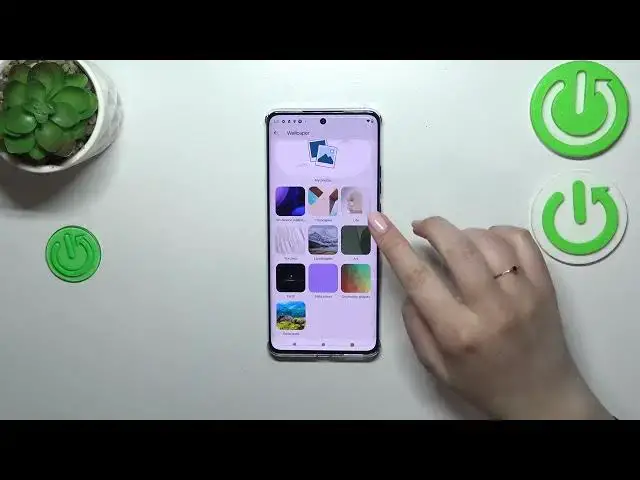
let's do it and then simply tap on the wallpaper section. As you can see here we've got the preview
0:21
of the lock screen and the home screen so we can always check which one we've got currently set
0:26
and here we've got some some albums from which we can choose the wallpaper from. So here we've got
0:32
my photos which is basically your own gallery. We've got this album also so you can create your
0:38
own wallpaper. Dynamic options which I believe are more like live wallpapers so animated ones
0:46
and here we've got the curated wallpapers. I think I will pick this option so here we've got some
0:52
static options so let's tap on it and tap on change wallpaper. As you can see in this section
0:56
we can also set the dark theme which simply means that everything will be displayed in a black
1:02
color. So let me tap on change wallpaper and here we've got again more options to choose from more
1:08
albums. Again we've got my photos so you can always enter your gallery. Here we've got some
1:14
pre-installed options so the wallpaper we've got currently set and here we've got more albums and
1:20
be aware that they will be available only if you will have the internet connection
1:25
All right so let's enter maybe textures. Let's check if we've got something interesting here
1:32
and basically after finding the wallpaper you have to tap on it but let me pick maybe this one
1:39
Just tap on it and as you can see you will be able to check the preview of it on the home screen
1:46
and the lock screen you can pick it. You can also change the position of it so you can drag it to
1:51
the left or to the right just frame it like you want to but I'm not really sure if I want to set
1:56
this one so let me just go back maybe landscapes. Landscapes are always good
2:05
All right whatever this one as I said the same situation here we can change it. You can also
2:11
tap on this icon which will apply it to the full screen and here you can also scroll so
2:17
it's up to you which option is more comfortable for you and I think I will pick something like
2:22
that. If you are happy with your choice just tap on set wallpaper and you can decide where you want
2:27
to set it so currently we are we are on the home screen. You can set it also on the lock screen or
2:33
both and I will pick both options so let me tap on it. And as you can see we automatically got back to the home page and the wallpaper has been applied
2:45
to the home screen successfully. All right so basically this is it. This is how to change the
2:52
wallpaper in your Motorola Edge 40. Thank you so much for watching. I hope that this video was
2:58
helpful and if it was please hit the subscribe button and leave the thumbs up