0:00
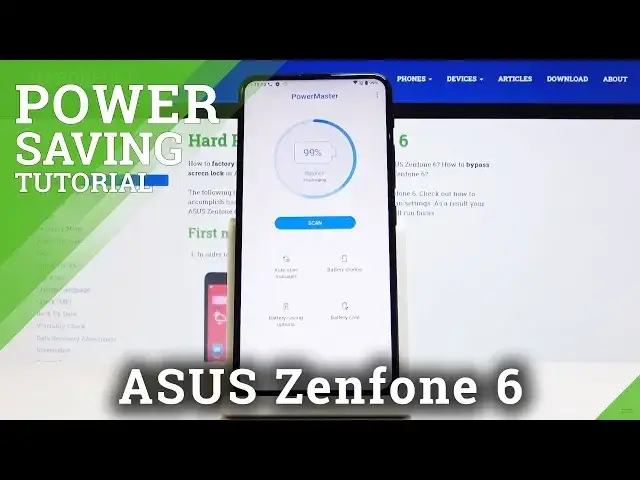
Here we've got Asus Zenfone 6 and let me show you how to activate power saving mode on the
0:08
following device. So, at first, let's open list of all applications, then find and select the settings
0:14
Now go to the battery and then select Power Master. And here you will notice battery mode, smoothly click on it
0:22
And if you would like to activate low power solution, just pick power saving mode or super
0:26
saving mode. The second one is for some extreme situations. So let's start with power saving mode, the standard one
0:32
Just click here. And that's it. As you can see, now your device is in power saving mode and it will work a bit longer
0:41
Then if you would like to use super saving mode, just select this option and then you
0:45
have to confirm that you would like to activate it. It's very strict mode. So if you would like to truly activate it, just click on OK
0:54
And as you can see, now we are in super saving mode
0:59
Then smoothly click on this tab right here to switch it back to power saving mode or
1:07
to the balance standard power mode. You can also activate low power solution quickly for the upper bar, smoothly slide it down
1:14
And now you have to locate the battery icon. And if it's not here, and I believe it's not included here right now, you just have
1:24
to tap on this pen icon. And now just slide battery icon up
1:32
Here it is. So let me drag it here. And now if you'll go back, here it is
1:39
So you'll be able to smoothly by tapping open battery mode. So as you can see now, it appeared here
1:45
Here it is. And that's it. You can now easily and easily save power in your device, in your power saving phone, in
1:51
your Asus Zenfone 6. Thank you for watching. Please subscribe to our channel and leave the thumbs up