0:00
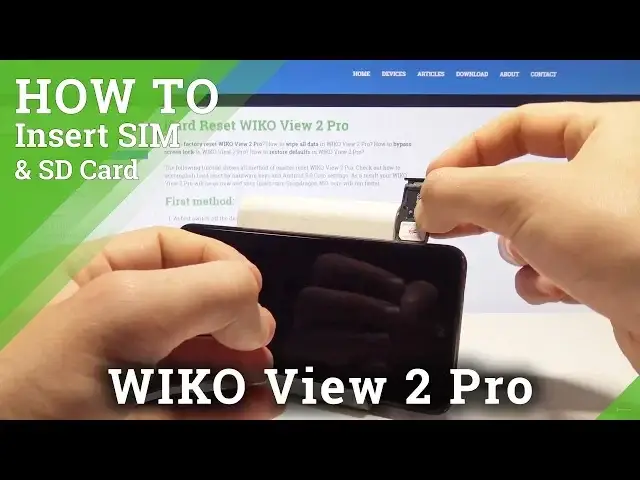
I have a Vigo View 2 Pro and let me show you how to insert here nano SIM and microSD card
0:13
So at the very beginning let's start by pressing the power key, choose power off and tap OK
0:18
to confirm the operation. Let's wait until your device will be completely switched off and then let's find the slot
0:24
The slot is located right here at the left edge of the device. Let's just simply open this slot by using some kind of the special eject tool or simply
0:33
the paper pin. Just let's press it right here to remove the whole tray, let me do it and here you can
0:42
insert the nano SIM and microSD card. But in the following slot you can also insert the nano SIM card
0:49
So let me show you how to do it. Let's just use the nano SIM card with the characteristic edge right here and in that
0:55
way you will have the dual SIM version. But in my case let me insert here the microSD with the characteristic edge right here and
1:04
let's leave this card in that position and let me insert the nano SIM card in the first
1:09
slot with the characteristic edge right here. Alright so now let's put the whole thing into your device right here
1:18
Let's just press it to the end and simply switch on the phone by pressing the power key
1:24
So keep holding the power button, let's wait until the vehicle will show you the home screen
1:37
Alright let's unlock the screen, here let's find and select settings, then choose here
1:45
network and internet, tap SIM cards, as you can see the phone is reading one SIM card
1:50
you can now go back and choose here storage, you've got here information about the portable
1:55
storage so you can also use here the SD card. So everything went well, thank you for watching, please subscribe our channel and leave thumbs