0:00
Welcome, I'm from Misei Murula Moto Z3 Play and today I will show you how to enable and
0:11
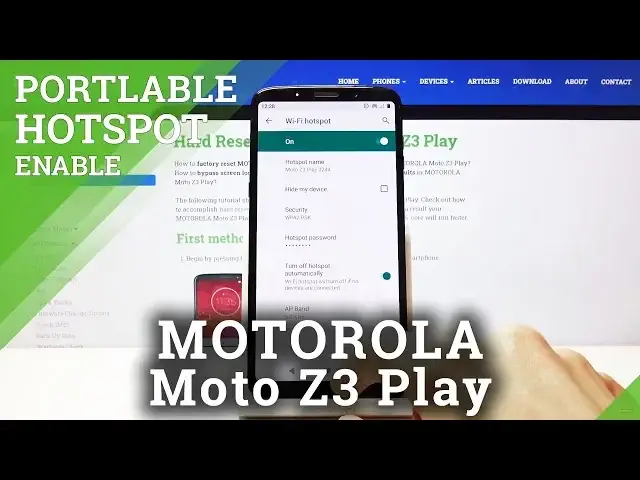
set up the portable hotspot. So to get started let's pull down the notification panel and find it in here
0:21
So it looks like it's not enabled by default so let's tap on the pencil and at the bottom
0:27
we should have it right there, the hotspot. So you want to grab it, drag it, drop it and go back and now it should be enabled somewhere
0:37
There it is, hotspot. So you can tap on it to automatically enable it but at this moment we won't really know
0:45
what the password is so let's hold the option and from here let's see, WiFi hotspot and
0:54
we have security so let's actually disable this at the moment and here we have hotspot
1:03
name so you can choose if you want to have some kind of different name, easier to distinguish
1:09
between other passwords around or not passwords but networks around and also in the advanced
1:15
we should have the password, there we go. So as you can see it's just some random password so you can remove that if you want and type
1:23
in your own password if you wish to use. Keep in mind that it needs to have at least 8 characters and then you can tap on OK and
1:32
it's set. And also at the bottom, the AP band, you have option between 2.4 or 5 GHz band
1:41
Now the 5.1 will be better, faster but not every device will be able to use it
1:46
The older devices most likely will not see the 5 GHz network so if that is the case
1:53
if it's all enabled and you don't see your network just change that back to 2.4
1:58
I'll put it up, actually you can set both of them as you can see
2:02
So that is probably the best option to have both of them
2:07
So if the device supports it you can use the better connection, faster one and if it doesn't
2:12
then you will just connect to the 2.4. And from there you're basically all set so you can now enable it from here manually by
2:22
tagging on or off and basically all the settings for passwords and stuff like that will stay
2:28
as you have set them so you don't have to go back to the settings
2:32
And that is basically how you would set it up. So if you found this video helpful, don't forget to hit like, subscribe and thanks for watching