Up next in 10


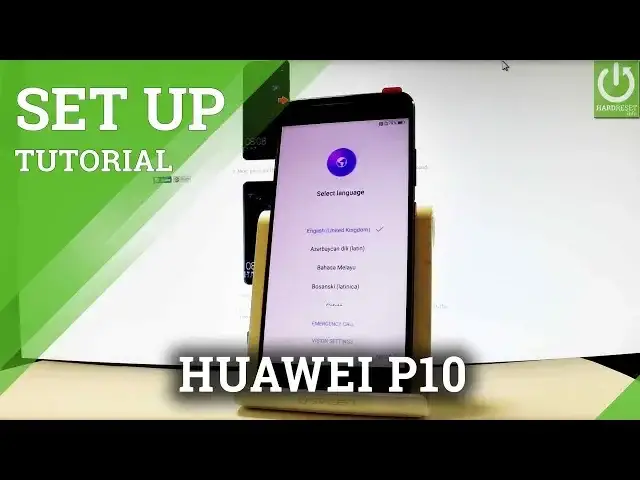
How to activate HUAWEI P10? How to set up HUAWEI P10 ? How to go through the setup initialization process?
This is the beginners guide that shows you the set by step instructions for Android activation. During this procedure you can connect your device to Wi-Fi, add Google Account, set screen lock etc.
More Info:
http://www.hardreset.info/devices/huawei/huawei-p10/
Show More Show Less View Video Transcript
0:00
Here I have Huawei P10 and let me show you how to go through the initializing setup process
0:09
on the following phone, so how to activate your device. At the very beginning let's start from the welcome panel
0:16
As you can see here you have the full list of available languages that you can use on
0:20
your device. So in my case let me select English for instance from United States
0:28
You may also choose the emergency call right here to make some emergency calls if you wish
0:36
Let's tap cancel. If you are ready let's choose next. You can insert sim card but you can also activate your device without the sim card so let me
0:44
do it that way. Let's tap skip. Let's tap agree to terms and conditions right here
0:51
Tap agree one more time. Here you have some information about permissions
0:57
Let's agree to the following terms. Tap next. Now you can connect your device to one of the available Wi-Fi
1:06
It's not necessary, you can bypass this step by choosing skip but you can do more with
1:11
your internet connection so let me connect my device to my Wi-Fi
1:15
Let's tap connect. Excellent, let's choose next
1:31
The phone is checking info and looking for any updates. And now you can add a Google account to your device
1:44
You can create a new one or you can also bypass this step by choosing skip in that corner
1:48
of the screen but in my case let me connect my device to my old Google account just to
1:54
enable some interesting features from my phone. So let's input an email
2:08
Tap next. Now you have to enter a password so let me do it
2:13
Let's wait a couple of seconds. If you are ready let's choose next one more time
2:23
If everything is correct you have to accept terms of services and privacy policy
2:29
The phone is checking info one more time. And now you can change some settings of Google services
2:35
For example you can enable or disable automatically backup device data, use Google's location
2:40
services to help apps determine your location, improve location accuracy, help improve your
2:46
Android experience. Let me leave all of these features enabled and tap next
2:55
Now you can protect your device by using a screen lock so let me do it
2:59
Let's set screen lock style. You can choose pattern pin or password
3:04
In my case let me select pattern. You have to connect at least 4 dots so let me use for example the following pattern
3:13
Let's re-enter pattern just for confirmation. Now you can setup your device as a new or keep your apps and data by restoring a backup
3:25
from one of your older devices. In my case let me setup my device as a new to have a fresh start so let me choose the
3:31
second option. Now you can connect your device to Huawei ID. Let me skip this part
3:39
And now let's choose set as new phone right here. Tap ok to confirm it
3:47
Let me skip adding a fingerprint right now. Let's tap get started
3:54
Excellent as you can see now you can use your device. Thank you for watching, please subscribe our channel and leave thumbs up under the video
Consumer Electronics
Networking
Software
Science