Up next in 10


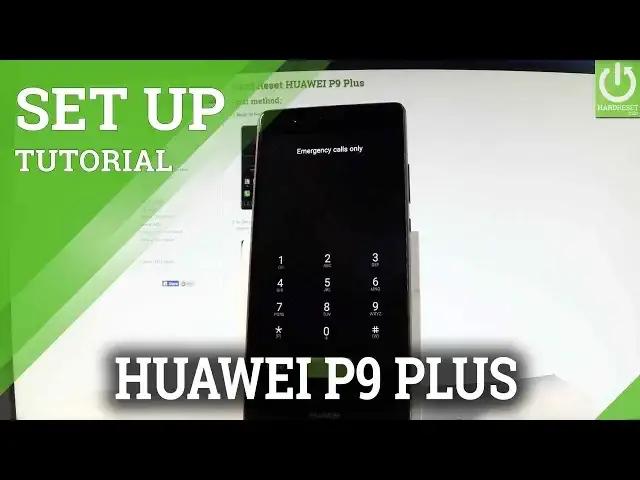
How to go through the initilization process on HUAWEI P9 Plus? How to set up HUAWEI P9 Plus? How activate HUAWEI P9 Plus?
This tutorial shows you the way from the HUAWEI Welcome Panel to the Home Screen. You will see here how to connect your phone to the Wi-Fi, add Google Account and other important settings.
More Info:
http://www.hardreset.info/devices/huawei/huawei-p9-plus/
Show More Show Less View Video Transcript
0:00
Here I have Huawei P9 Plus and let me show you how to go through the initializing setup
0:09
process on the following device, so let me show you how to activate this device
0:13
At the very beginning let me start by using a welcome panel
0:18
Here you should find a list of available languages that you can use on your device
0:22
So in my case let me choose English for example from United States
0:26
You may also choose emergency to make some emergency calls. If not let's go back
0:34
Let's tap cancel. Let's go next. Then you have to select your region
0:38
Let me leave United States and tap next. Now you can skip WiFi settings or you can connect your device to a WiFi
0:47
It's always a good idea to have an internet connection so let me connect my device
0:57
The device is obtaining an IP address and the phone is connected to my WiFi
1:03
Let me allow updater to access the SD card. Let's tap next
1:07
Here you've got some legal stuff. Let me tap cancel for now from the quick update
1:15
As you can see in my case the device found some update but let me leave it for now
1:21
Let me go back. So as I said here you've got some legal stuff, terms and conditions
1:27
You can read the Huawei policy and license and let's tap agree
1:34
Let me enhance internet experience by using WiFi plus service. Let me tap allow
1:43
And now you have to decide either you would like to copy your Google accounts, apps and
1:48
data from one of your other devices or you can choose no thanks and set up your phone
1:52
as a new. So let me do it that way, choose no thanks and tap next
1:59
And now you can connect your device to a Google account. It's not necessary you can bypass this step by choosing skip or you can connect your device
2:07
So the Google account enables you some interesting features so let me do it
2:13
You can do it in two ways, you can create a new account by using that blue link or use
2:17
an existing one. So let me use an existing one. Let's activate keyboard and enter an email
2:30
Let's tap next. Now it's time when you should enter a password, let me do it
2:44
Let's choose next. Let's accept terms of service and privacy policy, tap accept
2:52
The device is checking info. Here you've got some Google services settings
3:00
You can for example enable or disable automatically backup device data, help apps find your location
3:08
improve location accuracy, help improve your Android experience. Let me leave all of these features enabled and let's tap next
3:15
Now the Huawei is asking you to set up payment information but you don't have to do this
3:19
you can bypass this step by choosing no thanks and tapping continue
3:24
You can protect your phone by using a screen lock or you can tap skip
3:27
Let me choose skip, skip anyway. You can restore all default settings, let me tap it, let me tap allow
3:45
Here you've got some information about Huawei ID, let me deny and let me skip the Huawei
3:52
ID, let me skip the fingerprinting for now. And as you can see configuration is successful, let's tap begin
4:00
Here you've got some information about Huawei Home, let me tap enable
4:04
And as you can see now you can use your device. So that's it, thank you for watching, please subscribe our channel and leave thumbs up
4:09
under the video
Consumer Electronics
Networking
Software
Science