0:00
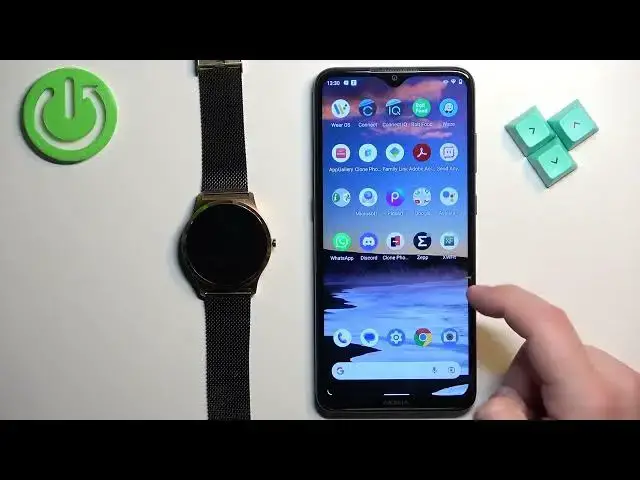
Welcome! In front of me I have X-Line Jolly XW Pro and I'm gonna show you how
0:06
to enable the phone notifications for this watch on the Android phone
0:09
Basically, if you want to receive the notifications from your phone on your
0:14
watch. Before we start, if you want to receive the notifications from your
0:23
phone on your watch, your watch needs to be paired with your phone via the XW Fit
0:28
application. Once the devices are paired together we can continue. And now we can
0:33
open the XW Fit application on the phone that is paired with our watch. Once you
0:40
open the application you should see the data page. Now tap on the device icon to
0:47
open the device page. On this page you should see your Jolly XW right here at
0:51
the top. Now find the notification option and tap on it. And if you get
0:57
prompt tap on the confirm. On this list find the XW Fit application and then
1:05
tap on it and tap on the switch next to allow notification access and allow it
1:10
Then go back to the app and now we can enable and disable the notifications for
1:16
specific apps and features on our watch. Basically we can, for example, enable the
1:21
notifications for incoming calls. So if somebody calls you and your watch will
1:25
vibrate and inform you or display who is calling you. If you enable the SMS
1:30
notifications you will see the message from whom you get the message and the
1:35
content of the message and you can also enable notifications for apps like Skype
1:40
WhatsApp and stuff like that. So to enable the incoming calls you can simply
1:44
tap on switch like that, then SMS. Sometimes you will need to allow more
1:50
permissions for the notifications to work. If you get prompted by turning on
1:56
the notification just allow the permissions. If you won't get prompted you can also minimize the app. Press and hold on it on its icon and then tap on
2:06
app info, then tap on permissions and here you can find the notification or
2:13
other permissions like call logs, contacts and phone. I believe you will
2:18
need to allow them for the call notifications to work. So you can tap on
2:22
call logs, tap on allow and tap on contacts, tap on allow and tap on phone
2:28
and tap on allow. But you can try keeping them denied and see if the
2:32
notifications will work. Okay and then enable the notifications for the apps
2:39
you want, for example WhatsApp and once you're done you can go back, close the
2:44
app and at this point you should be able to receive the notifications from your
2:48
phone on your watch. And that's how you enable the phone notifications for this
2:53
watch on the Android phone. Thank you for watching. If you found this video helpful
2:57
please consider subscribing to our channel and leaving the like on the video