0:00
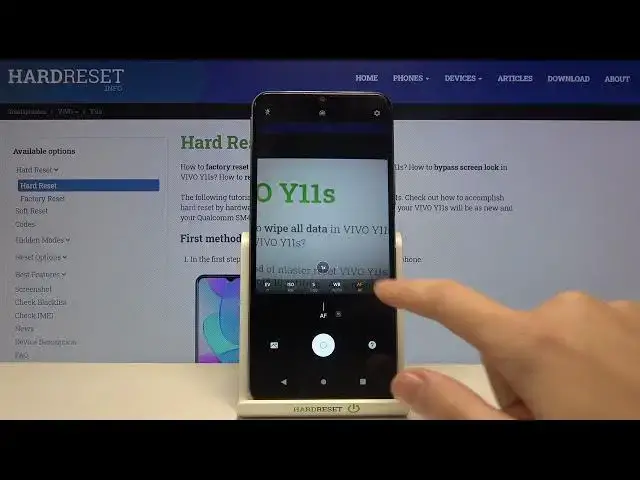
Welcome here I've got VivoY11S and I'm going to show you how to use the camera pro mode at this device
0:12
So let's start by tapping on the camera button to open it and for now we are in the standard photo mode
0:18
Let's change it by using this settings bar and just simply going to the right to more
0:23
So here we have access to other modes of this camera. One of this is the Pro mode
0:27
So when we tap on this we can start using it. And this mode gives us possibilities to choose some shooting parameters by ourselves
0:35
This is useful when we want to learn photographic skills for making experiments with photography
0:40
So let me start with this settings bar. Let's go from the left
0:43
The first one button here is the exposure compensation so we can manage the light of our picture by using this slider and going to the right on it
0:53
We can make our photo more bright as you can see. and by going to the left we can make it more dark
0:59
So this is how to use this. At the center we have zero parameter, so this is the auto-exporter compensation now
1:06
Now let's move to the next one button. Here we have the ISO, so we can control the camera's sensitivity to light
1:13
By using the slider, we can make it less sensitive from 50
1:17
and by going to the right we can make it more sensitive to 3 and 200 so this is really white spectrum And this is how to use this of course at the beginning we have the auto settings the next one button here is the shooter speed so we can manage the time of taking photo we can make it much shorter from 1 and 12 thousands of second this is really short time this should be better to objects that are for example in move to frozen them by going to the right we can make our time longer and let go to the
1:50
the end of this slider. The longest here is 30 to seconds so this is really long time of
1:55
taking photo. This should be definitely better to objects that are for example stable
2:00
And of course at the beginning we have the auto settings so there's no problem to go
2:05
back to the auto. Now let's move to the next one button here we have the white balance
2:09
and we can control the temperature of our picture by using this slider we can pick the light
2:15
we have in the area where we take a picture. So we have the tungsten
2:20
lamp then incandescent sunny cloudy sunset overcast and at the end of this slider we get
2:29
access to one extra slider where we can adjust this manually in calvin degrees as you can see by
2:37
going to the left we can make our picture more cold by going to the right we can make it more warm
2:43
so this is kind of a balance between the blue and the orange light and this is how to use this of Of course at the beginning we have also the auto settings so there no problem to go back Now let move to the next one button
2:56
Here we have the focusing. We are on AF, so this is the short from autofocus
3:02
By using this slider, we can change this to MF manual focus
3:06
And we can use this like that, as you can see as we need
3:11
And here we have also the auto settings. And I want to show you the last one
3:15
last one button here which is extra one so when you have this you don't have to �
3:20
in all of these buttons when you add just all of this you can easily go back to auto by just
3:28
one tab here and it all goes back so you can start using this again now let's have a look at
3:36
this button here at the center when we pick this we can turn on the camera leveler as you can see
3:41
we have this line another tap to turn it off and this is
3:44
useful when we want to keep our photographic topic straight at the picture as you can see this is how it works
3:54
Now let's turn this off and let me show you one extra option we have in this camera when we go to the right corner to this settings
4:03
So these are the advanced camera settings, most of them is also in standard photo mode
4:08
Let slide down Here we have professional functions option and we get access to the histogram So by using this button we can turn it on and off like that Let me keep this turn it on and in the Pro mode it appears here
4:22
So this is how to use this now let's turn this off by going again to this settings to the professional functions and tapping on this button
4:30
So for now it's gone. And now let me use these buttons to take a picture
4:36
So for example let's get the exposure compensation a little bit. brighter, the ISO may be here
4:44
The shooter speed the longer one, but not too long. So let's stay on this one and the white balance
4:54
Maybe by using this slider at the end and make it more warm the focusing
5:02
Let's focus as you can see. And here I can take a photo to see it. Let's move to the left
5:10
corner at the bottom to this button so we get quick access to the gallery and I have to
5:16
agree to use that and this is how looks the picture at this device by using the
5:26
Pro mode and that's all thanks for watching subscribe by our channel and leave the thumbs up