0:00
Here I have Oppo R17 Pro and let me show you top tricks on the following device
0:12
So let me start with the first one, let me show you the app split screen
0:15
Let's open here settings, scroll down and choose here app split screen, let's make sure
0:20
that you've got this feature enabled and now you can swipe up with three fingers and now
0:25
you can use the following split screens and as you can see you can use the first and the
0:30
second screen. If you would like to go back to one screen let's swipe up again with three fingers and
0:36
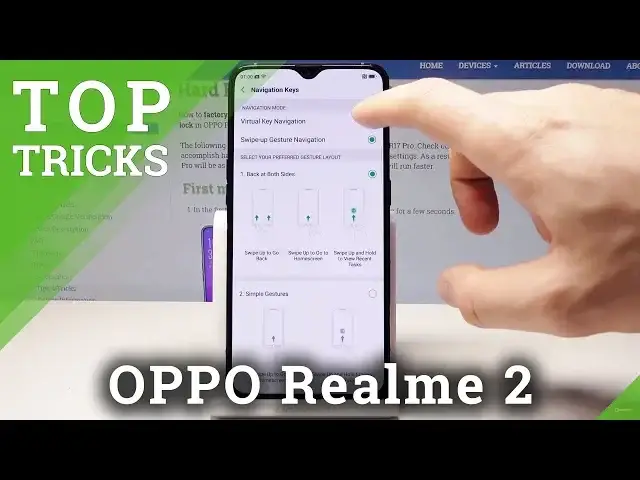
that's it. So let's go for the next trick, let me show you swipe up gesture navigation
0:42
So here let's choose the smart and convenient, choose here navigation keys
0:47
Right now we are using standard navigation keys, you can change the layout if you would
0:51
like to, but what's really interesting you can choose swipe up gesture navigation
0:56
So let me use the following style for example, you can swipe up from the left or from the
1:01
right to go back, you can open the home screen by using the middle swipe or you can also
1:07
open the tasks by using middle swipe and by holding. That's it, so it could be really useful
1:14
Alright if you would like to go back to previous version just choose here smart and convenient
1:19
let's select here navigation keys and let's choose the first option. Alright let me now show you the smart driving mode, so here in smart and convenient let's
1:28
choose smart driving and let's turn on smart driving. So here you can use a few features, for example you can use do not disturb while you are using
1:36
smart driving, you can use the Bluetooth car kit and you can for example add some Bluetooth
1:41
devices right here, you can scan for the devices. Here you can also automatically turn on while the device is connected to a Bluetooth car
1:50
kit so you can just automatically switch on this smart driving and you can set up this
1:56
do not disturb mode right here, for example you can use auto text message, you can use
2:02
it right here, you can choose here reply if you would like to and that's it
2:07
So if you would like to disable the smart driving you can use the upper bar and tap
2:11
end smart driving. Alright let me show you the next trick, so let me show you the kids space, let's here
2:17
go back to settings, scroll down, choose security and here let's choose kids space
2:23
So here let me allow some apps, for example let me allow the browser, music, let me also
2:28
allow the photos and YouTube. Let's go back, let's choose some duration time, for example 2 hours and here you can
2:36
choose enter kids space. So let's turn on some locks screen to use the kids space, tap turn on, for example you
2:44
can choose pattern method right here, let's draw the pattern, let's do it twice and that's
2:51
it, you just enter the kids space and you can see here you can only use those 4 apps
2:57
and if you would like to quit this mode let's choose quit kids space
3:00
Of course you have to confirm it by using your pattern and that's it
3:04
Now let me show you the last trick but really useful one, so let me show you the most powerful
3:09
app on this device, the phone manager right here. So here you can scan your device, device is scanning automatically and you can use one
3:16
of the most useful things, so one touch optimization, let's choose here optimize, now choose one
3:23
touch optimization and the device is cleaning up the memory, removing the junk files and
3:29
other optimized features and the operation is done, here you've got the results, tap
3:34
done, here you can also use the virus scan and you can scan your device to make sure
3:38
that everything is in a good state. So let's tap done and everything went well, thank you for watching, please subscribe our
3:44
channel, leave thumbs up under the video