0:00
Here I have the Nova Vibe P1 and let me show you how to use top tricks on the following device
0:13
So let's start with the first one, let me show you micro screen. Let's open the apps, choose settings, now let's scroll down and choose here the feature
0:21
So here we've got a few interesting features. For example you can quick snap, knock to light, smart scene, wide touch, flip to sleep
0:28
And in my case let me show you the micro screen. So let's tap on micro screen, let's enable this feature and you need to draw the C letter
0:37
from the top edge of the screen to the bottom. Let me show you how to do it
0:42
And that's it. This is the micro screen, one handed mode so it's easier sometimes to use this mode
0:48
If you would like to quit this, let's use this button and now you can use your device
0:53
in a normal way. Now let me show you the glove mode, so this is the second trick
1:00
The high sensitive touch. So let's open the settings, scroll here to display and scroll down to find the high sensitive
1:09
touch right here. This is the gloves mode so this mode enables you to use the touch screen while wearing
1:15
your gloves. It could be really useful. Alright, let's go next and let me show you really simple thing but really useful
1:22
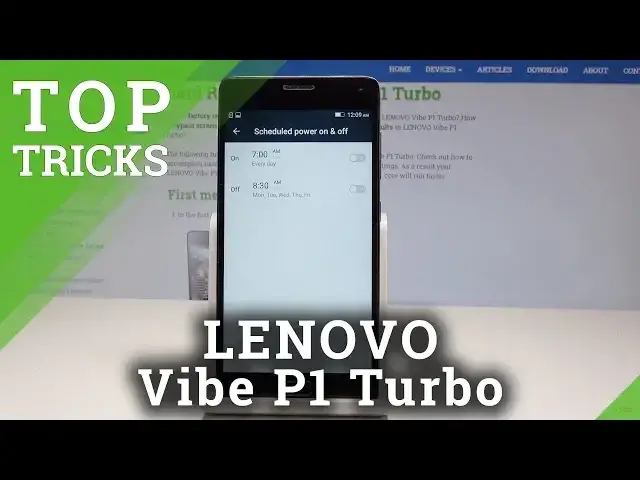
The schedule to power on and off. Let's scroll down and under basic settings you've got this feature
1:27
So you can for example set up to switch on your device every day at 7 am and you can
1:32
for example switch off your device every day at let me say 8 pm for example
1:41
So let's just choose your time and that's it. Tap done. Alright, let's enable this feature and that's it
1:51
Alright, now let me show you how to do the next trick
1:56
So let me show you the magnification feature. Let's scroll down to the accessibility
2:02
Here let's tap magnification gesture. Let's enable this gesture and now you can simply magnify things by triple tapping the screen
2:09
Alright, so as you can see I just magnify my screen. Here you can scroll down or change the position by using two fingers
2:17
If you would like to disable magnification let's triple tap again. Alright let's go for the last trick
2:24
So let me show you the tools of this device. So here you've got two amazing tools
2:31
Recorder right here. You can use the recorder to record some voice or you can here also use the second really
2:40
amazing tool but also really useful the compass. So as you can see the NovoVive P1 has built-in compass so you can use this compass right here
2:52
Here you can also click to get your GPS location. So that's it. Everything went well
2:56
Thank you for watching. Please subscribe our channel. Leave thumbs up under the video