0:00
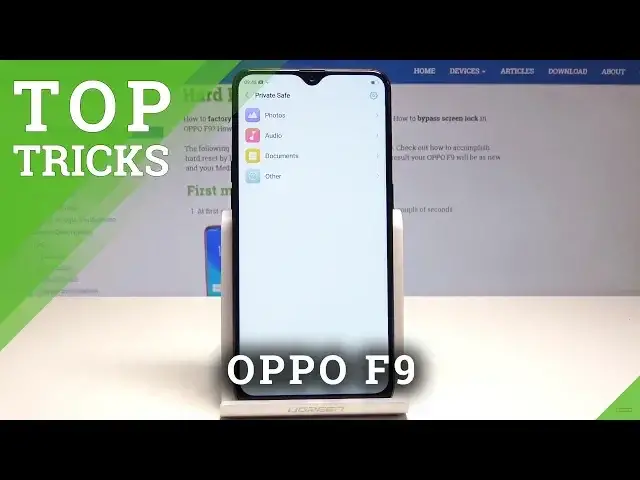
Here I have Oppo F9 and let me show you top tricks on the following device
0:10
So at the very beginning let me start with the safe space, let's choose the settings
0:15
here we need to find the security and here we've got private safe, let's tap it
0:21
Let's tap set passcode because you need to have the passcode to use it, so let me enter
0:27
some passcode, in my case it will be the simple one, here we've got some security chair, tap
0:40
done and here we've got your private safe, so here you can keep photos, audio, documents
0:46
or some other stuff, you can also here use the settings and here you can create the shortcut
0:53
on your home screen, so as you can see right now I've got my shortcut on my home screen
0:58
so now I can enter the private safe from my home screen
1:02
That's it, alright now let's go for the next trick, let me show you the split screen feature
1:08
so let's choose settings, here let's scroll down and choose up split screen, let's make
1:13
sure that you've got enabled this feature and now if you would like to split your screen
1:17
you need to swipe up with three fingers, let me show you, alright, just swipe up with
1:24
three fingers and you can split your screen, so here you can use some other app and here's
1:30
some other, if you would like to go back let's split screen again, so let's swipe up one
1:37
more time with three fingers and that's it. So now let's go for the third trick, let me show you the smart and convenience, so
1:46
let's choose here smart and convenient, here you can for example use the assistive ball
1:53
right here, so now for example you can one tap ball to go back, you can hold down for
2:01
a longer time to go to the home screen, you can double tap to enter the multitasking and
2:10
basically that's it. Of course you can also disable the assistive ball here, here you can also use the navigation
2:18
keys, you can select smart sidebar, as you can see this is my smart sidebar, I can also
2:25
use it on my landscape mode and let's go back, here you can also use some gesture motions
2:33
for example you can use the three finger screenshot right here, that's it
2:41
So let's go next, now let me show you the next trick, the smart driving, it's also in
2:47
smart and convenient, let's tap smart driving and you can enable this feature right here
2:52
and the smart driving it's really useful because it reduces some disturbance so you'll be more
3:01
focused on your driving, here you can also customize the smart driving for example you
3:05
can use non-disturbed driving, here you can also use the bluetooth car kit and you can
3:12
also automatically turn on smart driving when you are connected to your bluetooth car kit
3:18
If you would like to quit the smart driving let's use upper bar and tap end smart driving
3:23
Alright so now let me go to the last trick, let's find here and select the phone manager
3:29
and this is the really powerful app from Oppo, here you can for example optimize the device
3:35
by tapping clean storage, tap clear all, here you can also optimize by tapping the optimize
3:43
button, let's tap one touch optimization, let's go back, let's tap done, here you can
3:53
also use the virus scan and you can make sure that everything is alright, that you don't
3:58
have any viruses or risk or malicious app. So that's it, everything went well, so thank you for watching, please subscribe our channel
4:06
and leave thumbs up under the video