Up next in 10


If you are looking for more info check our website: https://www.hardreset.info/devices/apple/apple-ipad-air-2022/
If you are wondering what functions are hidden in the iPad Air 2022 or how to use the options in a different way than before, then in this video our expert will show you just such things!
Does iPad Air 2022 have hidden functions? What are the hidden options in the iPad Air 2022? How to open the list of hidden features of iPad Air 2022?
#iPadAir2022 #iPadAir5Gen #TipsTricks
Follow us on Instagram ► https://www.instagram.com/hardreset.info
Like us on Facebook ► https://www.facebook.com/hardresetinfo/
Tweet us on Twitter ► https://twitter.com/HardResetI
Support us on TikTok ► https://www.tiktok.com/@hardreset.info
Use Reset Guides for many popular Apps ► https://www.hardreset.info/apps/apps/
Show More Show Less View Video Transcript
0:00
Welcome
0:02
A Fun on Me is an iPad Air 5th generation
0:12
and today I'll share a couple tweaks and tricks that I can do on this tablet
0:15
Now I'll be completely honest before I begin, this is Apple so I'm not that versed, well versed in this ecosystem, so I'll just show you a couple quick things that I found
0:27
So, starting off, we're going to begin with the control center, which allows you to add additional
0:32
toggles to your control center, which is this little thing right here
0:37
And you do so by going into the settings, then finding control center, and below here you'll
0:42
find all the applications that can have some kind of toggle added to it
0:46
Additionally, if you have downloaded some kind of apps, sometimes they will add their toggle
0:50
into here as well. So you might want to sometimes check if app that you installed didn't have something that you
0:56
might want to utilize in your control center. And you added by simply just tapping on a plus
1:02
and you can see that it is now accessible through here as well
1:06
Now going to the next thing, it will have to do again with the control center, but not really adding anything to it
1:12
So you have couple of toggles visible right here, but when you hold them, for instance, like right here
1:19
it will expand it. Now right here doesn't really expand it that much
1:23
but let me quickly just look at something. So as an example, on here, same action
1:33
will yield me more options right here that I can access. So that's one thing
1:39
You can obviously do it with things like the brightness lighter, which gives you dark mode, night shift, true tone
1:44
as a quick access, which I'll touch upon later on as an option. And same goes for a couple additional things
1:51
each one of them giving you more options. So here, you can see, you can also
1:56
hold it and it just shows you quickly a couple additional light things
2:01
So, moving on to the next thing, it's going to be the dark mode, which, as you've seen, you could
2:07
quickly access by selecting the slider, but you can also find it in the settings under the
2:14
display and brightness, and you have light and dark mode. You also have the automatic option
2:18
which is one of the reasons I would recommend going in here. This will allow you to set it up
2:23
so the device switches from light to dark mode automatically based on the time of day
2:29
which right now it's dark, so it switched to dark mode automatically by turning it on
2:35
You can also select it to be basically set by you, by going in here, custom schedule
2:41
and you can select the time at which point it will start and end. A really neat feature in my opinion
2:49
I am very happy to see that a lot of the devices now come with this default because let be honest light mode isn always the best as well as dark mode isn always the best but both of them
3:00
have its best case use so as an example dark mode during the night time at least that's how i like it
3:07
and this allows me to kind of have it that way and while we're here we're going to also touch upon
3:13
the true tone so this is for the people that might not like it though personally i do like it
3:20
True tone, there we go. So once you disable it, as you can see the..
3:30
I genuinely cannot really tell much of a difference on the camera
3:34
Now personally, when looking at the display, I do see the difference, quite significant one
3:39
When disabling true tone, the display looks a little bit more bluish
3:43
So if that is something that you want, then you want to disable the true tone
3:47
If you don't, then keep it on. Like I mentioned on the camera it is barely visible
3:53
The change is super subtle compared to what it is to me at least
4:00
Anyway, moving on to the next thing is just a large icons for people that might have problem
4:08
struggle with using just the device normally. Now there's also things that you can go and change the font size under accessibility, but this
4:17
is just going to be the icons themselves so we do that by going into the home screen
4:22
and then selecting large icons or use large icons and you can see that they are
4:29
now way bigger okay now moving on to the next option it's going to be the dock so
4:37
you can quickly access the dock whatever you are at least I believe whatever you are
4:42
and you can then also interact with apps from here and switch between them
4:47
you can switch between apps that are open by just swiping on this bar as you see me do right now
4:53
so it will just kind of like cycle through the couple options there we go additionally once we grab the bar I know that we can somehow
5:03
open apps and there we go in this kind of view just needed a moment to figure out how
5:12
so as you can see we can now have an app opened kind of like in this windowed mode
5:17
and you can quickly access by swiping from my side and utilize it whenever you need to
5:23
So you can see I can just interact with it and then get rid of it, keep doing whatever I was doing
5:28
and select something else. Let's open up photos as an example. And again, I can bring it up whenever I need
5:35
And I can have a couple of apps like that open, though I can't view all of them at once
5:40
So just as an example. there we go so you can see Now I trying to figure out how I switch
6:04
Oh there we go. So it shows me right now the couple ups and that's kind of how I can switch between them
6:11
So you can swipe on it, do it quickly. So yeah, it allows me to have a couple apps open in the background though
6:19
usability of them is a little bit more wonky, not necessarily what I would
6:24
you expect from like an Android device which has a little bit more easily accessible
6:32
Now last thing that I wanted to show it's not really a top tweak or trick or anything
6:39
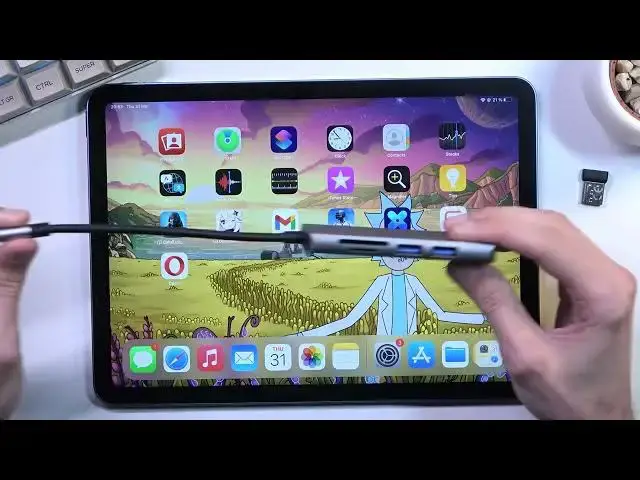
like that. It's just going to be the utilization of the Type C port. Now because like I said this
6:44
running Type C you can utilize things like this. So this is a Type C dungle
6:53
So I have an HDMI cable which allows me to plug this device to a monitor and view whatever it's displaying right here on a big screen
6:59
Either monitor, TV, it really depends what you plug it in. I can have SD cards and USB ports and that's about all I have on this dungle
7:09
Obviously there are tangles with more ports. And when plugging this in
7:13
this right here is a receiver for a mouse just plug it in
7:22
there and go and you can see right here this little dot
7:32
this is my pointer so you can basically now use a mouse
7:35
I can also plug in a keyboard and it will work no problem now before you decide to actually I don't know
7:41
logically try to use things like for instance, G4 now, which I tried, I will point that out that Apple decided to be an absolute
7:51
thing count about it, and this will not allow you to utilize a mouse in G4s now, because it's not
8:00
really considered a mouse, it's considered like a touch input. So it will just absolutely not
8:05
work in any kind of way. Now, the reason for this is because I believe Apple is working on their
8:11
own streaming services so they want to basically snuff out all the competition. At least
8:15
that's what I'm guessing right here. But number one, Apple as you probably are aware
8:22
doesn't allow really streaming services apart from their own on their platform. So
8:26
G4s now as an example, because this is probably one of the best options for gaming on
8:31
the cloud, needs to run through a web browser. Normally you can just download an
8:37
application as you would be, as you can do basically anywhere else on a computer on Android it works just flawlessly But here now you have to navigate to your browser and add it literally like a web page that you can access by just launching it
8:56
As a shortcut, it launches a web page and that allows you to use G4 now
9:00
But it still doesn't allow you to use mouse as a pointer
9:05
You can use a game pod. I guess you can connect a gamepad and it will work fine
9:09
but if you try to use a mouse this will not work because Apple decided to make the pointer
9:15
not be a pointer but it's virtually acting like your finger is almost touching the display
9:21
all the time without actually touching the display so when you launch a game
9:25
you moving your pointer will not affect the game and you pressing on it will
9:32
but moving won't because it's not a pointer so G4Snav can't really
9:37
recognize it but other than that if you're planning to use it for other purposes like just general usage for like a
9:48
laptop with a mouse and keyboard it works fine as you can clearly see I can swipe through it I
9:56
can open up applications navigate through them so you can see it works fine and keyboard
10:05
obviously will work just fine too just when you're trying to use some kind of different applications
10:09
that probably Apple doesn't want you to use, that's where problems arise
10:16
And obviously, this has much more applications, just just gaming. This is something that I kind of like to use things like this for
10:24
for number one displaying it on a bigger screen, and then utilizing G4Snow for cloud streaming
10:30
just because it allows you to take a kind of, just any kind of device and turn it into
10:36
which you would consider a top-of-the-line gaming, computer in a way though it's going through a cloud and additionally you're a really
10:43
good internet for that but still that's something that I like to utilize it for but
10:47
still this allows you for much more usability of your device and it's still nice
10:54
that Apple finally decided to include a Type C port on some of their devices because
11:00
still other ones do not have Type C so anyway this would conclude the top tweaks
11:08
tricks that I wanted to share with you. At this device, like I mentioned, I'm not the most
11:14
versed person here with Apple ecosystem, so I might have missed some really good ones
11:21
This is kind of what I found, what I utilize when I use devices like this from Apple
11:26
And if you found this very helpful, don't forget to hit like, subscribe, and thanks for watching
11:38
I'm going to be