0:00
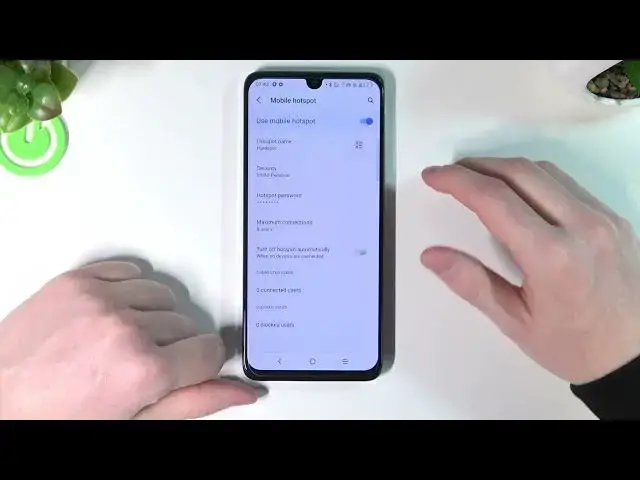
Hello, in this video I'm going to show you how to enable mobile hotspot and explain all of its settings on your TCL 30 or any TCL 30 series like TCL 30 SE TCL 30, TCL 30, TCL 30 6
0:18
So in order to enable our mobile hotspot, we can do it a few ways
0:22
The first one is to scroll down our toolbar or notification panel, however you call it, and then scroll down again
0:30
and from here you'll be able to find hotspot in this quick shortcuts
0:35
So mine is located right here for your phone it could be elsewhere
0:40
Just look for it, it's called hotspot, you can enable it here
0:44
Now to actually change the settings and properties for our hotspot we'll need to move to our settings, then find connections
0:54
now find hotspot and tethering and mobile hotspot. So here's where you can actually change the settings for it
1:04
But first when you open the hotspot and tethering you can see mobile hotspot
1:10
And already here you can find all the devices that are connected to your mobile hotspot So now let press on it and from here we can also either disable it or enable it like that We can change the name for our hotspot
1:25
And that's how it's going to be visible on our other phone
1:30
when we'll be searching for this hotspot. So let's call it hard spot
1:40
And press OK. The next setting is security. you can press on it in order to change your certificate for this security
1:49
You can press none and that means there won't be any password on your hotspot
1:54
And if you choose VPA 2, then you'll be able to set 8 digits password or more for this hotspot
2:05
So the next one is of course the password if you chose to use the VPA 2
2:10
So let's press on it and from here we can set the password, but it needs to contain at least eight digits so let's do it very simple like that and press okay
2:20
Right now hotspot is enabled and it has a password set. If we press on advanced the more options will be revealed and you'll be able to choose maximum
2:29
connections and if you press on it you'll be able to change how many people are able to connect
2:34
to this mobile hotspot so in this example I going to use one user You can turn off hotspot automatically when there no device connected Simply enable it and one more option will reveal and you can press on it in order to change
2:50
for how long the hotspot will be running with no guests to our network
2:57
So for example five minutes you can change to any of it if you want
3:03
You can find connected users which you can also see when you're in the hotspot and tethering settings
3:09
So if you press on it there's actually nothing happening right now but when we connect our other device
3:16
there could be more options revealed. So that's all of the settings
3:22
Our hotspot is visible and let's try connecting. So here's my other phone and
3:33
Let me lower the light a bit like that. Brightness was too much
3:42
And we can connect actually two ways to this hotspot. So the first one is to simply press on the available networks
3:50
We can refresh it. We can only see our hard spot the name
3:54
And then click on it enter our password And simply press connect if the password was correct we would actually connect And the second way is to press on our TCL on this QR code
4:10
New QR code will show up. We can click on the QR's code on our Wi-Fi list and then scan it in order to connect
4:20
So as you can see, we've just connected this hard spot. let's go back
4:27
and here you can find as I mentioned that there's more options when the new
4:33
device is connected so here you can see my phone which is connected right now
4:37
to this mobile hotspot we can press block and then it will
4:43
travel to the blocked users and it will be banned from using
4:47
this hot spot it won't be able to connect to it as it is blocked
4:52
or right now it was visible but there's no way to connect
4:57
Now unblock it and try connecting again. As you can see it works
5:04
So yeah, that's it for this video. Hope you like it. Please consider subscribing to our channel
5:09
Leave a like and a comment below