0:00
Here I have Vivo Y91, let me show you how to use secret codes on the following device
0:10
So at the very beginning let's start by using the phone's dialer and let's start by using
0:15
the phone information. So let's use the asterisk pound, asterisk pound, 483, 8, pound asterisk, pound asterisk
0:27
As you can see the following test email just pops up, here you can choose phone information
0:31
read the email number, signal strength, data service and other stuff. Here you can also run a ping test or use more key in order to view contacts in the sim
0:40
view fixed dialing numbers or see activate data network connection. Let's go back, here you can also tap user statistics and here you can read the information
0:52
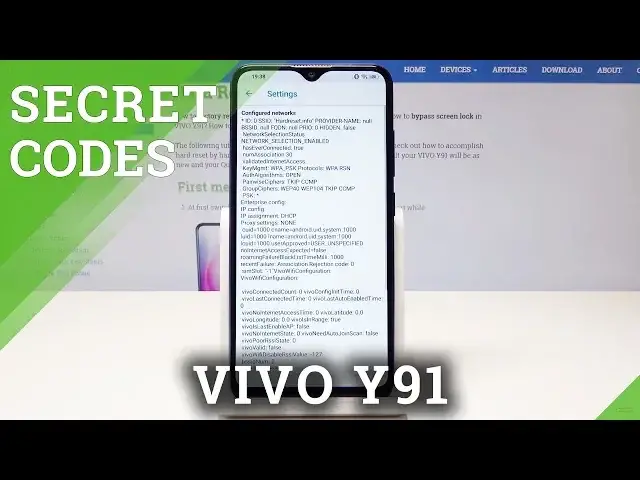
about your apps, the last time used and usage time. Here you can also open WiFi information and here you can select WiFi API to disable network
1:00
disconnect network, enable network, get configure networks or get connection info. You can also tap here the WiFi config and see configure networks from your device and
1:10
you may select here the WiFi status. So here you can refresh or start or run a ping test
1:15
Use back key twice and here let's open the second android testing menu, let's use this
1:21
code, asterisk, pound, asterisk, pound, asterisk, pound, 4, 6, 3, 6, pound asterisk, pound asterisk
1:32
As you can see here you can check out the battery test, let's tap it and here you've
1:36
got the battery information. Let's go back again and it's time to open this code, let's use the calendar info, so
1:43
we need to use asterisk, pound, asterisk, pound, 2, 2, 5, pound, asterisk, pound, asterisk
1:51
and the calendar info just pops up, here you can read information about your calendar
1:56
Alright, let's go back, now it's time to open Google Play service, so let's use asterisk
2:00
pound, asterisk, pound, 4, 2, 6, pound, asterisk, pound, asterisk and the Google Play service
2:06
is just pops up, here you can read a few information. Now it's time to use this code, let's enter here the IMEI code, so let's use asterisk
2:17
pound, 0, 6, pound and IMEI code just pops up and let's use the advanced IMEI code, so
2:24
let's use asterisk, pound, 0, 9, pound and the following code pops up
2:29
So that's it, everything went well, thank you for watching, please subscribe our channel
2:33
leave thumbs up under the video