0:00
Here I've got Medion E5005 and let me show you all the secret codes for the following device
0:13
So at first, let's open the phone together. And we will start with the first code, the shortest one, which is asterix pound 06 pound
0:23
And as you can see, this one will provide you with both email numbers for your device
0:27
for both SIM cards, so click on OK to go back. And this is the quickest method to locate email number in your device
0:34
Let's go to the second code, which is asterix pound, asterix pound 0759 pound asterix pound asterix
0:43
Wait a couple of seconds. And now we are in debug menu
0:49
So here you can check brand code, unique device ID and all the other useful information
0:53
You can also check pings and events here. So here it is
0:59
Let's go back from this truly useful code performed by Google to another one, which
1:05
is asterix pound, asterix pound 225 pound asterix pound asterix
1:15
And now we are in calendar info. So if you will have any Google account included here, and if you will have some events, birthdays
1:21
or other celebrations, then you will be able to see all the events here
1:26
So the events from the country that you currently stay in. So you will not have to take a look to the calendar every day, but you will have all
1:33
important events at once here just after entering this short code. And finally, the code is asterix pound, asterix pound 4636 pound asterix pound asterix
1:49
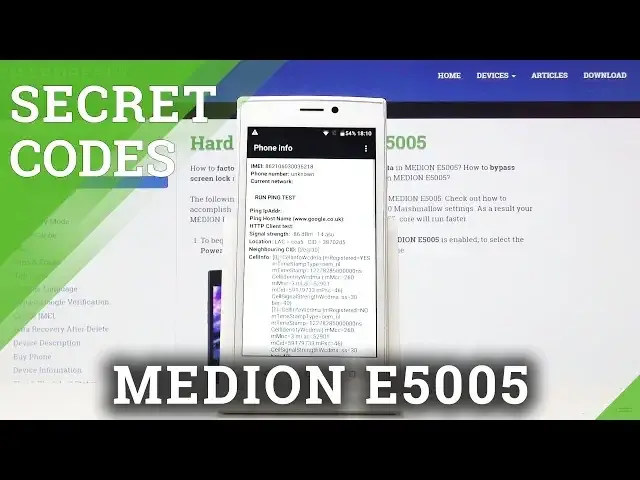
And now we are in testing mode. So let's start with phone information
1:53
This is the first step. And here you can locate email number, phone number
1:58
If you have your SIM inserted, you can also run a ping test here, simply run ping test
2:03
and then you will have the solution. You can check the cell info, data attempts, radio resets and all the others
2:09
As you can see, you've got plenty of truly useful and advanced options here
2:14
Let me go back. Then you can go to usage statistics, where you will be able to check your last usage
2:24
time for all the apps. Everything is included here. So you will find definitely every application here
2:31
Let me go back. And finally, you've got Wi-Fi information. Open it
2:36
And now at first, let's go to Wi-Fi APA, where you can notice disabled network, disconnect
2:42
network, enable network, configured networks and also connection info. Then you've got Wi-Fi configuration
2:48
So you have here all the configured networks and finally Wi-Fi status, where you can obviously
2:56
at first refresh it, where you can check the status of your Wi-Fi
3:01
Such details as Wi-Fi state, network state and all the others. But you can also run a ping test here
3:07
Simply tap on run ping test and then you've got the solution above
3:10
Actually below, sorry. And that's all. This is how you can use your secret codes in your Medium E5005
3:17
Enjoy them. Check your device whenever you need to. Thank you for watching
3:22
Please subscribe our channel and leave the thumbs up