0:00
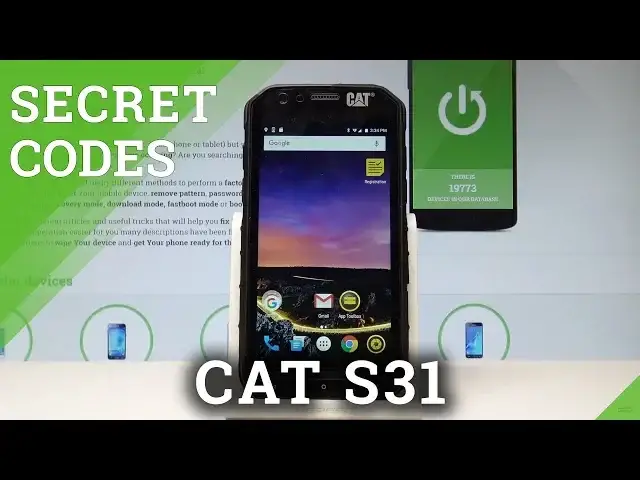
Here I have Cat S31 and let me show you how to use secret codes on the following device
0:10
So at the very beginning let's open the phone's dialer, so let's choose phone icon, let's
0:15
activate a keypad and let's start by entering the Android testing menu
0:19
So let's use star pound, star pound, 4636, pound star, pound star
0:27
As you can see the testing menu just pops up, here you can navigate by tapping appropriate
0:31
options, let's choose phone information at first and here you've got the information
0:35
about your device, you can read such things as email number, phone number, current network
0:40
signal strength, voice service. You can also run a ping test or for example choose more key in order to select radio band
0:47
view sim address book, view fixed dialing numbers, view service dialing numbers or enable
0:53
data connection. So let's go back twice to open the usage statistics and here you can check the stats
1:00
about your application, you can see the last time used and usage time
1:05
Let's go back one more time and choose the WiFi information, here you can select WiFi
1:09
API, when you can disable network, disconnect network, enable network, get configured networks
1:15
or get connection info. So let's go back and choose WiFi config, if you have configured networks here you should
1:22
see the full specification about them. Let's go back, let's also choose the WiFi status, here you've got the statistics about
1:30
your WiFi, you can refresh them or run a ping test. So let's go back again to quit the testing menu, this time let me show you how to open
1:38
the calendar info, so let's use the star, pound, star, pound, 225, pound, star, pound
1:45
star, pound, star. As you can see calendar info just pops up, you can read about the statistics and some
1:52
information about your calendar. Let's go back by using your back arrow, this time let me show you how to open the Google
2:00
Play services mode, let's use the star, pound, star, pound, 426, pound, star, pound, star
2:08
As you can see Google Play services just pops up, here you can choose ping, connect, disconnect
2:13
or events. So let's go back by using your back arrow, this time let me show you how to use debug
2:19
UI, so let's type in star, pound, star, pound, 759, pound, star, pound, star
2:27
As you can see debug UI just pops up, here you can view client's ID, change OEM mode
2:33
and read the specifications. Let me go back, at the end let me show you how to check the email number by using the
2:39
secret code, so all you have to do is use this combination, star, pound, 06, pound
2:49
And as you can see the email number just pops up, my device has 2 email numbers because
2:53
you can insert here 2 SIM cards. So that's it, thank you for watching, please subscribe our channel and leave thumbs up