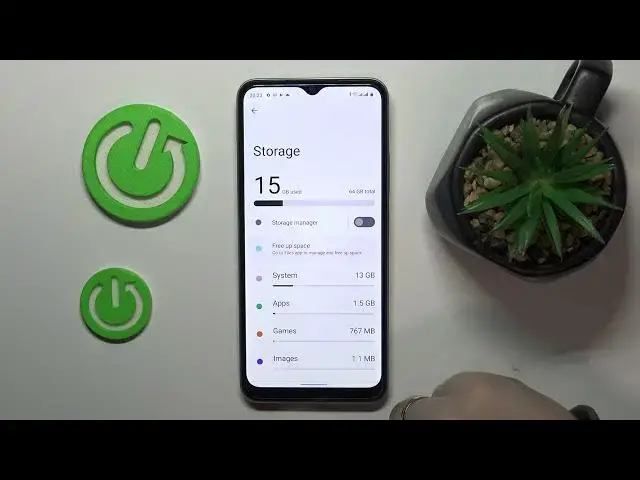

REALME C33 - How To See Available Storage
Jul 24, 2024

Discover more about Realme C33 at : https://www.hardreset.info/devices/realme/realme-c33/tutorials/
To see the available storage on the Realme C33 smartphone, follow these steps:
Go to the Settings app on the Realme C33 smartphone, and tap on the Storage option.
The Storage screen will show you the total storage space on the Realme C33 smartphone, and the amount of storage space that is being used by the system, apps, and other files on the phone.
You can tap on the Used space option to see a breakdown of the storage space being used by different types of files on the Realme C33 smartphone, such as system files, apps, images, videos, audio, and other files.
You can tap on the Clean up button to free up some storage space on the Realme C33 smartphone, by deleting unnecessary files, such as cached data, temporary files, and other files that are not being used by the phone.
You can also tap on the Other files option to see a list of all the files on the Realme C33 smartphone, and delete any files that you do not need, to free up some storage space on the phone.
Keep in mind that the Realme C33 smartphone allows you to see the available storage on the phone, and manage the storage space on the phone. You can see the total storage space on the Realme C33 smartphone, and the amount of storage space that is being used by the system, apps, and other files on the phone. You can also clean up the storage space on the Realme C33 smartphone, by deleting unnecessary files, and freeing up some storage space on the phone. You can see the available storage on the Realme C33 smartphone, by following the steps described above.
How to check available storage on Realme C33 ?
Where can i check storage on Realme C33 ?
How much space is left on Realme C33 ?
How to find storage on Realme C33 ?
Show More Show Less