0:00
Hi, welcome to Harrowe to ResidInfor channel, Devivers
0:03
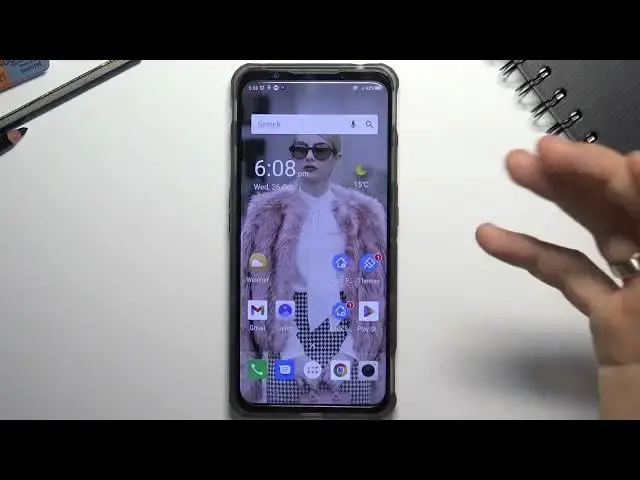
In front of me, Nubia, Red Magic 6R, and now I'm going to show you top three best themes on this device
0:12
Of course, I will show you top three best themes for this device in my humble opinion
0:19
and I will show you how to change the theme on this device
0:24
It's so tricky on this phone. Okay, so firstly, open your own
0:29
open your Play Store and as you can see the third place in my top have ADV
0:37
launcher 2. So attention this theme will be appreciated only by old-school users
0:45
old-school Android users so just click install and click open. Here you can choose the Android style as the style and yes I
0:58
I have seen how the old school tear blown up from your eyes
1:04
Yeah, you can choose Android lollipop or Kid Cat style on this phone
1:11
So just choose the style, click Go It, Go It. And nice
1:18
Here we have our Android Nugat or Mashmallow or Kid Cat style
1:25
If you want to set this theme as default, you need to
1:28
open settings then find apps click up info info then click on three dots
1:40
the right of corner and choose default up settings and launcher and here choose ADV
1:46
launcher great but this is this was only third place on our top but the second
1:55
place in our top, wait a while, second place in our top has Apex Launcher
2:07
Find it and install. Not Apex Launcher Pro but just Apex Launcher
2:15
Click Open. Here choose your draw style horizontal or vertical I want to use vertical style Then you can set up how many rows you want to use how many columns you want to use
2:32
This is really flexible and customizable launcher. So here choose free transition style
2:42
Click next, next, click skip, skip, skip. and home screen. Great. Here we have, try again, click try again, choose Apex Launcher and
2:59
cool. Now we have the Apex Launcher, choose Apex Launcher, okay, click always, just click always
3:12
and cool. So as you can see we have our Apex Launcher, here we have our Apex Launcher, here we have our
3:18
apps menu and it's really good looks you can install all icon packs to this launcher from
3:28
play store so if you want to install any icon pack launcher appex launcher you can install any
3:39
icon icon pack to your apex launcher so just find icon pack and for example yikons I
3:47
and as you can see here is there are many many new icons so just click about this app and as you can see
3:58
ADV small smart okay okay you can apply this launcher to Apex launcher too you can apply these
4:06
launcher to Apex launcher too you can apply these icons to your Apex or novel launcher it's
4:14
there are a similar launcher You can download Launcher Launcher, Launcher too
4:21
It's similar like Apex Launcher but completely free. So you can enable, you can install all types of icon packs to your Apex launcher
4:37
So I suggest you to use Apex Launcher to customize your device Okay but it was the second place of our top But the first place has a Microsoft
4:52
launcher. So, install it. Why I think that Microsoft is the best launcher for your device? Because Microsoft
5:11
Launcher is the most customizable launcher ever. You can customize here everything you want
5:18
for example. Just click, okay, okay. Here you have sign-in window. So here you can sign into
5:26
your Microsoft account. And if you are using for Microsoft devices,people or laptop with Windows
5:36
you can get all your messages and calls on your Microsoft device so you can use it in
5:47
pair if you want to if you want to want to answer for SMS on your Windows device
5:58
using your Android phone just install Microsoft Launcher it will work together in pair
6:06
so I will skip it because I will not show you now how it works click Continue
6:12
let's go set as default Microsoft Launcher great here on the left side of your
6:22
home screen and you have the glance panel here you can you can set up this panel
6:28
you can hide for example Microsoft calendar or Microsoft to-dos and you can add
6:36
your Google Calendar, for example, click Add Widget, find your Google Calendar
6:42
You can set up this glance panel how you want. So if you want to use Microsoft Calendar, you can use Microsoft Calendar, if you want to use
6:53
Microsoft Calendar and Google Calendar, you can use it. You can use Microsoft MSN News if you want and it really great works Here on your home screen screen you have themes button Oh this appex theme
7:16
I'm so sorry. Click on it. Wait a while. Where I am
7:21
I'm here. Okay. So just click and hold on free space on your device
7:29
Click launcher settings. And here you have your launcher, Microsoft Launcher Settings
7:34
Here you can customize everything. You can customize your wallpapers. You can customize the light, dark. You can customize blur opacity. You can customize colors of your device. For example, accent color. Just choose any warm color to use warm colors on your system on your Microsoft launcher
8:04
so you can customize doc panel and you can customize number of columns and
8:11
numbers or number of rows so you can customize really every scene for example
8:20
you can use this dog panel to save here your favorite application but not only
8:28
five applications but here you can add any application else. For example, click on it and add any other applications
8:44
Okay, and you can see here we have other applications. Okay, that's it
8:54
Thanks for watching. Like this video, subscribe to our channel. If you are using for any of showed themes, write us about it in comments or
9:04
of this video. If you are using for any other Android theme or Android launcher, write us about it
9:11
and tell us why you're using it. So thanks for watching, like this video, subscribe to our
9:19
channel and bye. See you