0:00
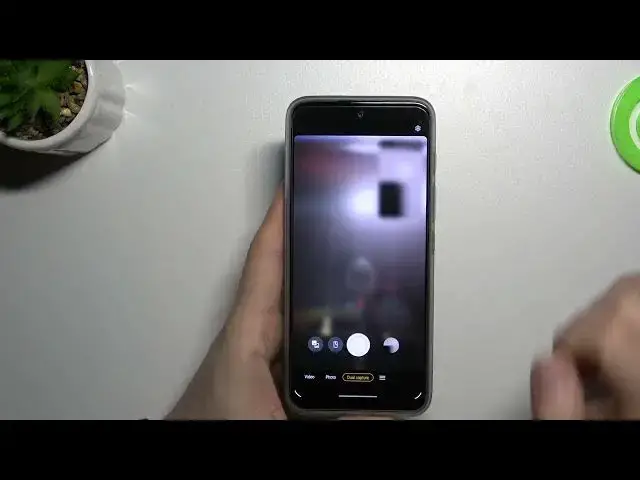
Welcome. Today I am with Motorola Moto G71 5G and I'm going to show you a couple
0:11
of camera tricks. So at first I'm going to start from the standard mode like
0:15
photo, video and also these few additional that we can find right here
0:19
So let's start from the photo mode. In this mode we can quickly increase or
0:24
decrease the brightness level. We have to tap on the screen and then move this
0:28
icon. The same and the video mode. When you go back for the photo mode we can add delay
0:40
to our shutter by tapping right here and select between 3 or 10 seconds. When you
0:46
select 3 seconds and tap on the shutter after this time photo will be taken
0:52
And there it is. We can also pick dual lens. You have to be connected to the Wi-Fi
0:58
network or mobile data to let it work properly. And right now you can recognize
1:05
objects around you. So for example I would like to get more information about
1:09
this mouse. It's a Logitech but honestly I don't know the exact model. So you have
1:14
to just put your phone like that on that object. When you get this blue dot tap on
1:21
the shutter and after a few seconds we'll find the web search. It's Logitech
1:27
B100 mouse. As you can see it's the same one. Or no, maybe it's Logitech Me19 as
1:36
you can see. Because the logo adds like this one. Yeah that's definitely Me19
1:43
mouse. So if you want to recognize objects around you or if you want
1:50
to check the price you can make it right here in this Google Lens application
1:56
Right now we can go for the more modes. When we can find the dual capture you
2:01
can open this option in the photo and the video mode. So take a look. You can
2:05
take photo or video at the same time for the two different cameras. Just take a
2:12
look. Right here we got the preview of the selfie camera and here we get the
2:18
preview of the rear camera. You can also change the theme, the overlay, so we can
2:27
split the screen, change the position, just like that. The another useful option is the ultra-resolution mode. So with this mode
2:39
we can get more details on the photo. So take a look. I'm gonna take two photos
2:45
First one with the 50 megapixel mode and the second one with the
2:52
normal mode. And let's take a look on the difference. So this one was
3:00
taken with the 50 with the normal mode and it looks like that. And this one was
3:09
taken with the 50 megapixel mode. And in this mode as you can see we can
3:15
zoom definitely much closer, we can spot more details. For example when you focus
3:20
on this place, like maybe right here. So that's how it works. And right now we are going for the settings where we can
3:42
find the capture settings. And right here we can enable tap anywhere to capture. So
3:46
if you sometimes cannot reach this shutter right here, for example when you
3:50
hold your phone like that, you can just tap on the screen and you can also take
3:54
photos. And that's all. So if you find this video helpful remember to like
4:03
comment and subscribe