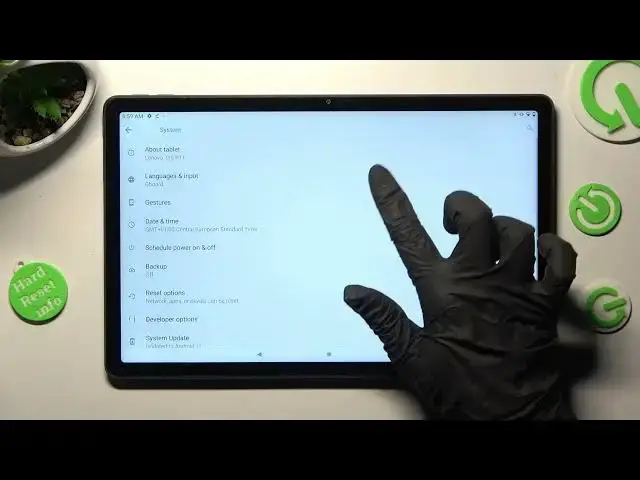

LENOVO TAB P11 PLUS - How To Enter Text Correction Options
Jul 25, 2024

Check more info about LENOVO TAB P11 PLUS :
https://www.hardreset.info/devices/lenovo/lenovo-tab-p11-plus/tutorials/
To enter text correction options on a Lenovo Tab P11 Plus, follow these steps:
Open an app or text field where you can enter text, such as a messaging app or a search bar.
Type the word or phrase you want to correct.
Tap and hold the word or phrase until a menu appears.
Tap "More" in the menu.
Tap "Text correction" to view the available correction options.
On a Lenovo Tab P11 Plus, you can enter text correction options by tapping and holding a word or phrase until a menu appears, then tapping "More" and selecting "Text correction." This will display a list of correction options, such as "Add to dictionary," "Ignore all," or "Autocorrect." You can select one of these options to apply it to the word or phrase.
I hope this helps! Let me know if you have any other questions.
How to enter text correction on LENOVO TAB P11 PLUS ?
How to enable text correction on LENOVO TAB P11 PLUS ?
Show More Show Less