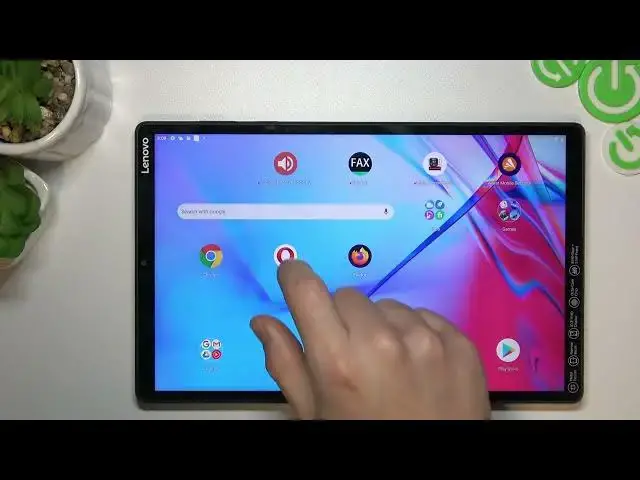

Lenovo Tab m10 Plus - How To Open Incognito Mode
Mar 25, 2024

Visit Our Website And Learn About LENOVO TAB M10+ :
https://www.hardreset.info/devices/lenovo/lenovo-tab-m10-plus/tutorials/
To open Incognito mode on a Lenovo Tab M10 Plus, you will need to use a web browser that supports this feature. Most popular web browsers, including Chrome, Firefox, and Opera, offer Incognito mode as a privacy feature that allows you to browse the internet without leaving any history, cookies, or other data on the device.
To open Incognito mode on a Lenovo Tab M10 Plus:
Open the web browser that you want to use in Incognito mode.
Tap on the menu icon (three vertical dots) in the top-right corner of the screen.
Tap on "New incognito tab" or "New private tab."
A new Incognito tab will open, and you will see a notification indicating that you are in Incognito mode.
This will open Incognito mode on your Lenovo Tab M10 Plus for the selected web browser. Keep in mind that the exact steps and options may vary depending on the web browser that you're using and the device's software version and settings.
If you're having trouble opening Incognito mode on your Lenovo Tab M10 Plus, you can try looking for a tutorial online or contacting the web browser's customer support for assistance.
You can also try using a different web browser or app that offers Incognito mode or a similar privacy feature to see if it works on your Lenovo Tab M10 Plus. Some apps and services may offer additional options or features for protecting your privacy, such as the ability to block cookies or to encrypt your internet connection. You can try installing and using a different privacy app or service to see if it works on your Lenovo Tab M10 Plus.
Show More Show Less