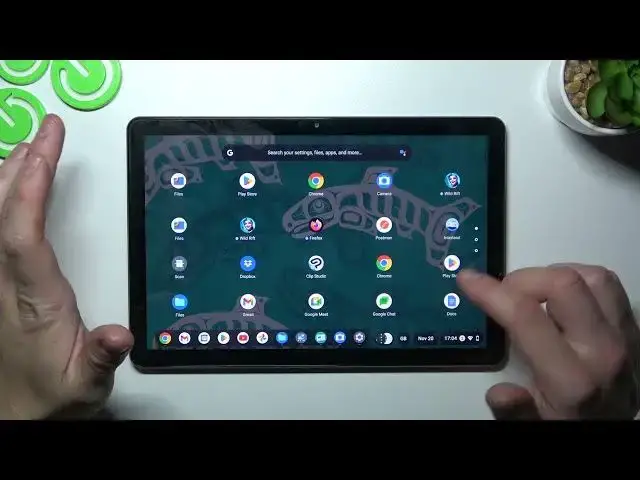

Lenovo IdeaPad Duet Chromebook - How To Access File Manager
Mar 26, 2024

Visit Our Website For More Information : https://www.hardreset.info
On your Chromebook, click on the "Quick Settings" menu in the bottom right corner of the screen. This will bring up a menu with several options.
From the Quick Settings menu, click on the "Files" option. This will open the Files app on your Chromebook.
In the Files app, you will see a list of the different storage locations on your Chromebook, including your local storage, Google Drive, and any connected external storage devices.
To access the files on a particular storage location, click on it in the list on the left side of the screen. This will show the contents of the selected storage location on the right side of the screen.
You can use the Files app to manage your files and folders, including creating new folders, moving files between storage locations, and deleting files.
I hope this information is helpful. If you have any other questions, feel free to ask.
How to open file manager on LENOVO IDEAPAD DUET CHROMEBOOK ?
How to launch file manager for LENOVO IDEAPAD DUET CHROMEBOOK ?
Where can i see files for LENOVO IDEAPAD DUET CHROMEBOOK ?
How to view files on LENOVO IDEAPAD DUET CHROMEBOOK ?
#LENOVOIDEAPADDUETCHROMEBOOK #Open #Filemanager
Follow us on Instagram ► https://www.instagram.com/hardreset.info
Like us on Facebook ► https://www.facebook.com/hardresetinfo/
Tweet us on Twitter ► https://twitter.com/HardResetI
Support us on TikTok ► https://www.tiktok.com/@hardreset.info
Use Reset Guides for many popular Apps ► https://www.hardreset.info/apps/apps/
Show More Show Less