0:00
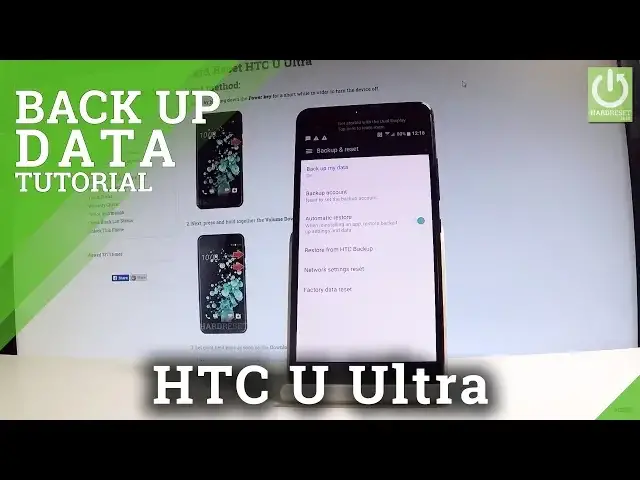
Here I have HTC U Ultra and let me show you how to enable backup options on the following device
0:10
So, at the very beginning let's start by using a home screen. Let's find and select the apps icon, then choose settings, scroll down and right here
0:19
you should find the backup and reset. It's located under personal tab so choose backup and reset
0:26
And then here you've got the backup my data feature. Let's enable this feature by using that switcher right here
0:36
Let's go back and as you can see backup my data is switched on and you can, and you have
0:42
to also add the backup account so you need to set the backup account
0:47
Let's choose it. If you have added some Google account you can use them, if not let's choose add account
0:53
It's important to have an internet connection right now and here you can do it in two ways
0:58
You can create a new account by using that blue link or use an existing one
1:03
So let me use an existing one. Let's input an email
1:14
Tap next. Then you have to enter the password, let me do it
1:32
Excellent let's choose next again. Let me enter my password one more time
1:49
Alright let's choose next. Tap accept. The device is checking info. Let's choose next again
1:59
Here you can disable or enable automatically backup device data. And that's it
2:05
All you have to do is add necessary backup account and enable backup my data feature
2:10
so you can use the Google account option on this phone. So you can go back and start using your device
2:16
Thank you for watching, please subscribe our channel and leave thumbs up under the video