0:00
Hi everyone. In front of me I've got Samsung Galaxy A25 and let me share with you how to use secret codes on this device
0:10
Start with opening the dialer because this is the place where we can actually enter all those codes
0:16
But before we'll start just a quick disclaimer. I highly recommend to click in the link which is in the description box
0:22
because you will be transferred to our website where we've got listed all of the codes which I will present today
0:28
So you can check them, you can check another description of them. But also you can find some important tutorials
0:36
like the hardware set for example, how to bypass the Google verification. So as I said I highly recommend to check the website
0:44
Alright, so let's start with the first code which is in my personal opinion the most interesting one because it is not really that technical like the others
0:55
It is also short and you can have fun while using it. So the code is asterisk pound o asterisk pound
1:05
So here we've got something like a test mode. So basically here you can check particular components of your device
1:14
You can check whether they are working perfectly fine. So for example we can tap on the red and basically all we are doing right now
1:21
is that we are checking the screen whether everything is okay, whether all of the pixels are working properly
1:28
Basically if you can see any kind of white dot or dark dot it means that there's something wrong with the screen
1:35
As you can see in my case the red is all across the screen. It is the same which means that the screen works
1:41
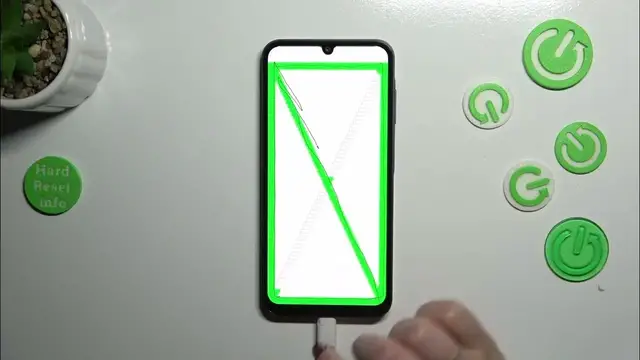
The same situation with the green and with the blue. We can also for example check the touch
1:48
So just tap on it and right now you have to drag the line all across those rectangles to check whether those areas of the screen are working fine
1:58
So if you can see the red color, not red, oh my god, the green color, it means that this section works
2:06
Of course you have to draw the line inside the rectangles, not outside
2:11
Alright, here we've got also this one and this one. So as you can see everything works okay
2:20
You can check also the front camera, the black loopback, grip sensor, speaker, vibration receiver etc
2:28
So as you can see here you can have a lot of fun whilst checking the device whether it works good
2:36
Let's go back. You have to double tap on the back button to turn off the test mode
2:42
And another short code which is asterisk pound 06 pound. And thanks to this code you are provided with both e-mail numbers and also a serial number of this device
2:55
Let's tap on OK and let me show you another code which will open the USB settings
3:00
And the code is asterisk pound 0808 pound. And there we've got the USB settings. You can change the mode, replace the MTP to another one
3:11
Simply tap on it and then tap on OK to confirm. Right now we have to enter probably the easiest code to remember because it is asterisk pound 1234 pound
3:26
And thanks to it we can open the version. So we can check the AP, CP number and the model
3:32
Let's go back and let's open another code and I believe it is the last code for today's video
3:41
It is asterisk pound 2663 pound. And thanks to it we can open the firmware version where you can check the sensors and you can refresh the WiFi version and the Bluetooth version
3:57
So a really really technical code. Alright, so that would be all. Thank you so much for watching. I hope that this video was helpful
4:06
And if it was, please hit the subscribe button and leave the thumbs up