0:00
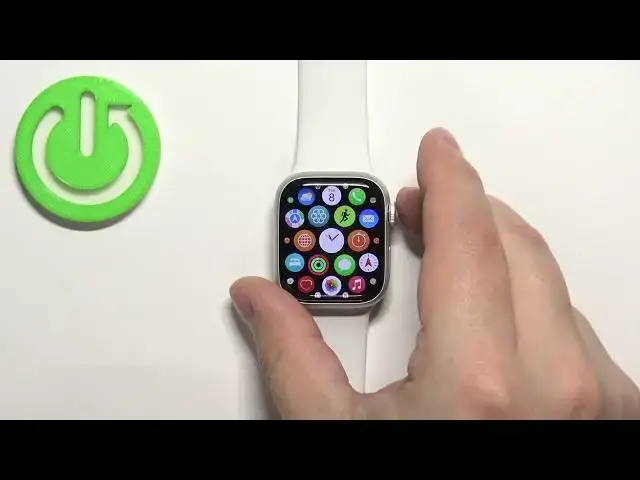
Hello! In front of me I have Apple Watch Series 8 and I'm gonna show you how to
0:05
enable and how to disable the Do Not Disturb mode on this watch
0:14
First we need to wake up the screen on our watch and you can do it by pressing
0:18
any of the buttons. Once you wake up the screen you can swipe up from the bottom
0:22
of the screen to open the controls menu. In this menu scroll down and find the
0:27
Do Not Disturb mode icon. It looks like this, like the moon. And to enable the mode
0:33
simply tap on this icon. This will open the list of different types of focus
0:38
mode. We have Do Not Disturb, Personal, Work, Sleep and Driving. Select the
0:44
one you like. We're gonna select Do Not Disturb but you can select different one if you want to. And then it will open the list of
0:54
durations and we have On, On for one hour, On until this evening, On until I
1:00
leave the current location. If you select On it will stay on until you turn it off
1:07
If you select On for one hour it will stay on for one hour and then turn off
1:11
If you select On until this evening it's gonna stay on until the evening. And if
1:17
you select On until I leave it's gonna stay on until you leave the current
1:22
location you are in. Okay I'm gonna select the On option and as you can see
1:27
the icon changed the color. This means that the Do Not Disturb mode is enabled
1:31
and we can press the crown button to go back to watch face. And on the watch
1:35
face also you will see the Do Not Disturb mode icon which indicates that
1:39
the mode is enabled. And to disable the mode simply open the controls menu, scroll
1:45
down, tap on the Do Not Disturb mode icon. The icon will go back to the gray color
1:50
and also it will disappear from the top of the watch face which means that the
1:54
Do Not Disturb mode is disabled. You can also open the settings on your watch so let's press the crown button
2:05
then scroll through the menu, find the settings icon and tap on it. In settings
2:11
we can scroll down find the option called I believe general. Yeah general
2:17
And here... not here. Is it in... no it's not general my bad it's focus right here. So
2:30
you can tap on focus then Do Not Disturb. No you can scroll all the way down and
2:34
at the bottom we have option mirror my iPhone. And what this option allows you
2:39
is basically if you enable it and you turn on the Do Not Disturb mode on your
2:44
iPhone or focus mode it will also turn on on your watch and vice versa. So if
2:52
you turn it on your watch it will also turn on on your iPhone and if you disable this option they won't. So if you enable it on your watch it won't enable
3:00
itself on the iPhone and if you do it on iPhone it won't enable itself on on the
3:05
watch. So if you like to mirror your iPhone make sure that this option is enabled. If you don't care you can disable it. Okay and once you're done you
3:12
can press the crown button to go back to watch face. And that's how you enable and
3:17
how you disable the Do Not Disturb mode on this watch. Thank you for
3:22
watching. If you found this video helpful please consider subscribing to our
3:26
channel and leaving a like on the video