0:00
Welcome, in this video I am with the Infinix Hot 12i and I'm going to show you the most
0:05
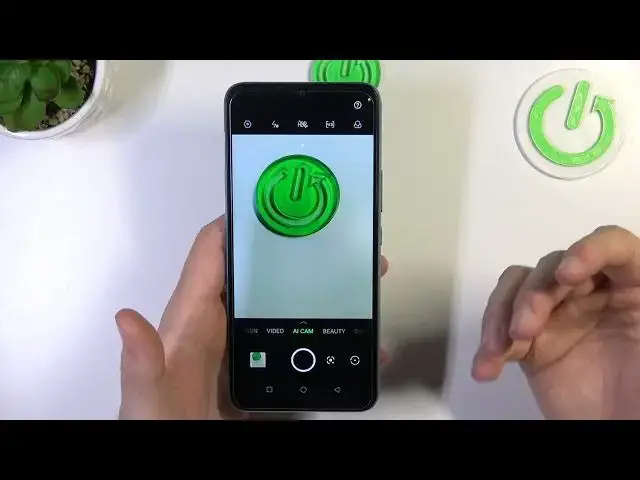
useful features on the camera application. Okay so when we open this camera application, we'll be in the photo mode at first
0:19
And right here in this photo mode we can find a few hidden options. The first one will be definitely the volume buttons that you can use
0:26
So just take a look, when you press the volume up or volume down, as you can see you can
0:33
just take photo. You can also click and hold one of these buttons
0:37
Well but we have to turn off this HDR, okay, right now
0:42
And also the flashlight. And as you can see right now we can take this series of the photos
0:49
So if you want to take a look on the photos that you take, just open gallery and tap right here
0:56
As you can see right now when you move your finger on the left or the right, you can find
1:00
the very photo that you take with this phone. And if you want to keep any of them, just tap and then click on the right upper corner
1:08
to save. You can save all of them or just only the three photos that you select, so we can decide
1:15
After that you can find them just normally in the gallery. As you can see they appear right here, the three photos that we save
1:26
Okay, next when you click on the screen, you can find this sun icon and with this icon
1:31
you can adjust the brightness level. So we can decrease or increase brightness
1:36
You can also make it automatically by tapping on the screen once
1:41
When you click and hold your shutter, you are also going to take series of the photo
1:48
Next I would like to show you the filters. You can tap right here and find different filters
1:55
As you can see they change color and the temperature. So if you want to take photo with this one for example, just click on the shutter and
2:04
the photo was taken. If you want to turn it off, just select the first one, the original look
2:15
Next I can recommend you to simply go for the more modes
2:22
Let me just open the menu and we can find for example the AR shot
2:33
And as you can see this allows us to take the emoji photos
2:39
So we can select this one. There's also some faces, but of course you have to switch to the selfie camera or simply
2:52
point the camera on someone to make the face detect and after that it will appear
3:01
I mean the emoji will appear. So yeah. And you can also create here your own avatar
3:11
I think we can go for the settings also. And right here we can for example use the fingerprint as a shutter
3:19
So take a look. It's the shutter and when I tap on it, I can take photos
3:25
Just like that. When you go back to the settings, we can also simply change function of the volume buttons
3:38
So we can use them as a zoom for example. So we can click and hold the volume button and you can zoom in
3:43
To zoom out just do the same. We can also enable the grid lines and the touch photography
3:54
The grid lines right now appears on the screen and they help us to take better composition
4:00
on the photos. And when you want to use the touch photography, just click on the screen once and the photo
4:07
will be taken. As you can see it's working really good. Okay
4:12
And honestly that's all for this device. That's all tips and tricks and the best features that I can show you in this smartphone
4:20
If you find this video helpful, just remember to leave a like, comment and subscribe