0:00
Welcome! Here I've got Samsung Galaxy A31 and I'm gonna show you how to use the
0:10
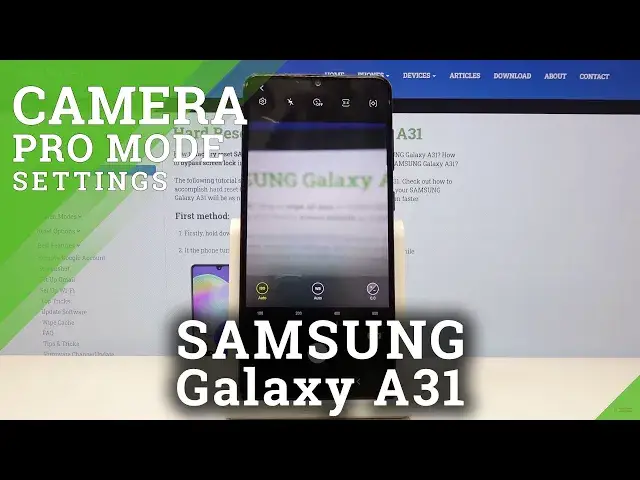
camera pro mode at this device. So at first we have to tap on the camera button
0:13
here to open it and as you can see for now we are in the standard photo mode so
0:18
let's change it. We can do it by using this settings bar and just simply going
0:22
to the right, two more. Here we have access to other modes of this camera and as you
0:27
can see one of this is the pro so when we tap on this we can easily start to use
0:31
this and the pro mode gives us possibilities to choose shooting parameters by ourselves. This is useful when we want to learn
0:38
photographic skills and making experiments. So let me start with the settings bar and the first one button I want to show you is this one from the
0:46
left. This is the ISO. By tapping on this we get access to this slider and we can
0:51
adjust the camera's sensitivity to light. As you can see by going to the right we
0:55
can make it more sensitive and by going to the left we can make it less
1:00
sensitive. So this is how it works here and when we turn it on on manual
1:05
sometimes we want to go back to the auto settings. We can go
1:10
back by just simply tapping on this button here on manual. As you can see for
1:14
now it's changed to the auto. Now let's move to the next one button here at the
1:18
center. This is the white balance so here we can control the temperature of our
1:22
picture and as you can see we have also access to this slider and here in
1:27
calving degrees we can adjust the white balance. By going to the right we can
1:31
make our picture just more warm and by going to the left as you can see it
1:36
changes to the cold. So this is how it works here and of course to go back to
1:41
the auto settings we just simply tap on manual here and it changes. Now let's
1:46
move to the last one button here. This is the exposure compensation so here we
1:50
can adjust the light of our picture and we can make it just more bright by going
1:55
to the right or more dark as we need by going to the left. So this is how it
2:00
works here. And now let's move to this settings bar. Most of the settings is
2:05
also available in the standard photo mode so I'm not going to speak about it
2:10
for now. Let's focus on this button here from the right. When we tap on this we
2:15
can choose the metering. As you can see you can pick the matrix metering, spot
2:20
metering and also the center weighted metering. So this is how it works. And now
2:26
let me take a picture. And here at the left corner at the bottom is the quick access to the gallery. So
2:43
this is our photo. Thanks for watching, subscribe our channel and leave the