0:00
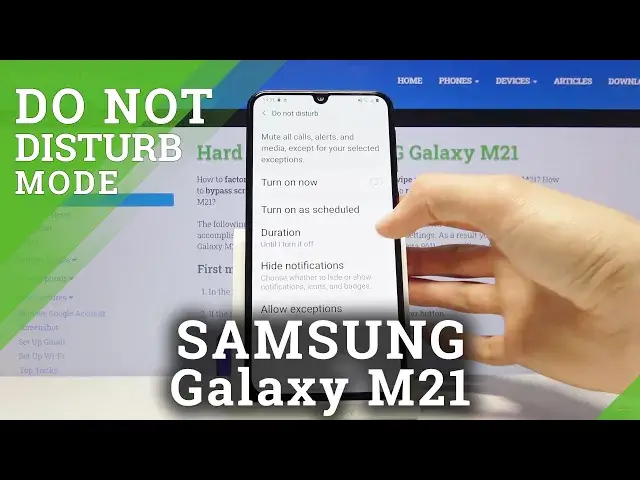
Welcome, in front of me is a Samsung Galaxy M21 and today I'll show you how to enable
0:11
and set up the Do Not Disturb mode. So to get started let's pull down the notification panel
0:17
where we will find the Do Not Disturb mode. So it is right here for me. Now the position of this
0:22
toggle may vary so keep that in mind but once you find it what you want to do is hold it
0:27
and this will take us to the settings of it. So from here we have the turn on as schedule option
0:35
which will allow you to create your own schedule at which the mode will be turning on and off
0:40
automatically. And then below if we go back we have duration so this is if you turn on manually
0:49
so you have until I turn it off, one hour or ask every time. Now if you select ask every time and
0:58
you go to enable it it will ask you basically every time. From here you have until I turn off or
1:04
you can choose a specific period of time like so. And then back in the settings one last thing we
1:13
have hide notifications so this is primarily settings just for notifications of all sorts
1:19
which you can customize which ones you want to see or well don't see. And then you also have the
1:24
allow exceptions right here which will allow you to customize how the mode actually functions
1:30
So number one calls from allows you to choose who can call you while the mode is enabled so you have
1:37
contacts only, favorite only or no one or well everyone which defeats the purpose
1:43
So for instance let's go with favorites then you have the option for repeat colors which will allow
1:49
anybody to basically call you assuming they call twice within a 15 minute period so only then they
1:57
will be able to. So the first time you won't really see anything but the second time they will actually
2:01
reach you as though the mode is not even on. And it's a good option to have enabled in terms of
2:08
some emergency. Then you have below messages same options as calls choose whichever one you want
2:16
and below that you have alarms media sounds start sounds calendar events and reminders so just
2:21
enable which ones you want to hear and which ones you don't care keep disabled. And then you can just
2:27
leave this mode and if you have set it as a schedule then well it will be enabling at the
2:33
set time and apart from that you can just simply like I said before tap on it and then turn it on
2:41
like so and right now it's set until I turn it off so I would have to manually turn it back
2:45
off by tapping on it again but that is how you would set it up and if you found this
2:50
video helpful don't forget to hit like subscribe and thanks for watching