0:00
Hello, in front of me I have Sony Xperia PRO-I and I'm gonna show you how to transfer the
0:12
files from the internal storage to SD card and vice versa. First we need to open the file manager on our phone
0:21
To do it you can swipe upwards on the screen to open the app menu and then find the application
0:29
called files or if you have any different file manager you can also open it
0:34
We're gonna use the default one, the Google one, so let's tap on files to open the file
0:39
manager and now make sure that the browse category is selected. On this page scroll down and at the bottom you should see the storage devices and you
0:51
have internal storage and SD card. Next we want to copy the files from the internal storage to SD card so let's select the internal
0:59
storage to open the storage of course and right here we have the list of folders located
1:07
on our phone, basically in the internal storage. Now let's find the files we want to move, so for example I'm gonna open the DCIM folder
1:15
photography and here we have couple of photos. Let's say I want to move them to SD card
1:21
To do it simply press and hold on one to enter the selection mode, select the files
1:27
you want to move, I'm gonna select all of them but you can select one or two or multiple
1:32
Once you select the files tap on this icon right here to open the menu, select the option
1:38
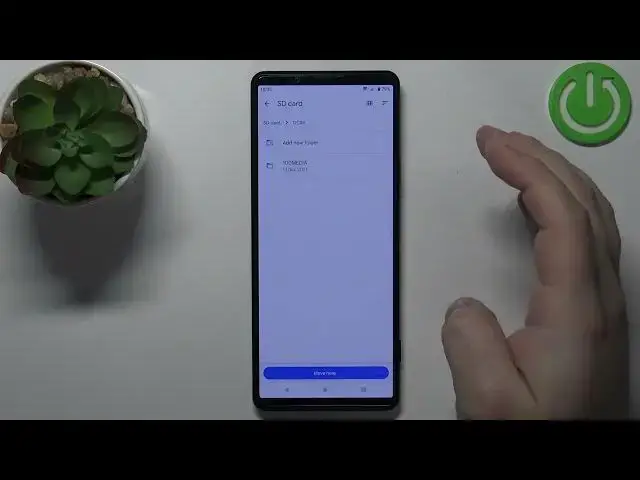
called move to, find the SD card and tap on it and it should open the SD card and here
1:46
we have the list of folders located on our SD card. We can open a folder by tapping on it for example, we can also add a new folder, we
1:58
can tap on add new folder so for example I'm gonna open DCIM, tap on add new folder, name
2:04
it moved files and tap move to folder
2:14
So if you create a new folder you will have the option to move to the folder so if you
2:19
create a folder it will automatically move the files into that folder
2:24
As you can see. So now if I go to the home page of the app, to the browse page, select SD card, DCIM
2:36
moved files, here I have the files. Ok, so let's say you want to move the files from the SD card to the internal storage
2:45
it's quite the same way basically, the different thing is that you open the SD card rather
2:53
find the files you want to move, so let's open the moved files, select the files you
2:57
want to move, for example this time we're gonna select only two, tap on the more options
3:02
button, tap on move to, select internal storage. Now find the folder you want to move the files to, into, so I'm gonna open DCIM, Photography
3:13
Pro and then you can again create a new folder or I'm gonna tap, this time I'm gonna tap
3:19
on move here button to move the files into this folder. So I'm gonna tap on move here and now we can go back to the browse page, select internal
3:28
storage, DCIM, Photography Pro rather and here we have our files. And that's how you transfer the files from the internal storage to SD card and vice versa
3:43
Thank you for watching, if you found this video helpful, please consider subscribing
3:47
to our channel and leaving a like on the video