0:00
Welcome, I'm from the museum Motorola Moto C Plus and today I'll show you how to transfer
0:10
photos, videos or any kind of other file from the device to an SD card or vice versa
0:16
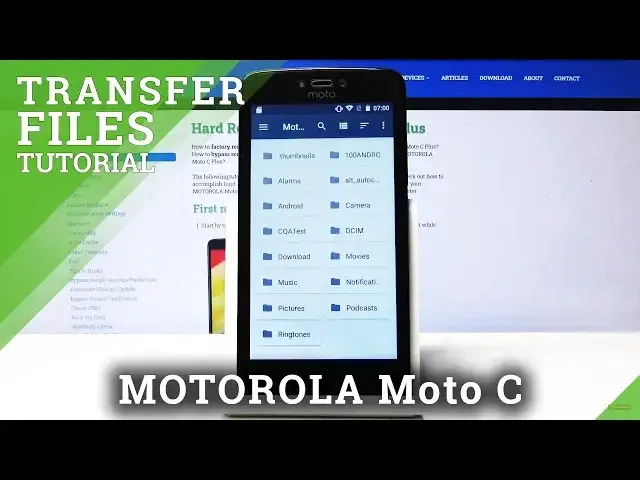
And to begin you want to open up the downloads app, so pull up on the app tray and you'll
0:21
find right here, tap on it and then tap on the three bars right here and you will find
0:31
both of your storages, so your Moto C, the internal storage and then your SD card
0:37
Now if you only see one or nothing here, go back, basically slide the panel away and tap
0:42
on the three dots and I don't have the option right now because to me it's already enabled
0:48
but you will see an option here, I think it's gonna say something alongside of show internal
0:54
storage or something like that, or show SD card, I'm not sure exactly, but something
0:59
along show something. So just tap on it and then you will find both of them on here
1:06
And to get started with it you want to open up one of them, I guess the photo that I have
1:12
is located on the phone itself, so it's gonna be the Moto C
1:17
And photos and videos that you capture with the device will always be located under the
1:21
DCIM folder, so right here, you can see there is one. And screenshots should be located under photos folder, or pictures, my bad
1:34
And downloads will have any kind of file, image or whatever it is that you have downloaded
1:39
using just browser and email I think as well. So basically find whatever that is that you want to copy, wherever it's located, for me
1:48
it's just gonna be that photo. And all you need to do is hold your finger and it gets selected, as you can see there
1:53
is a little checkmark. And if you have multiple photos you can just simply tap on them additionally to add the
2:00
checkmark to them as well, to as many photos as you want
2:05
Then you'll just, let me just reselect this, then you'll have the option to copy or move
2:12
And just before I choose one, if you have an entire folder of it, you don't actually
2:15
have to select all the photos in there if you want to move every photo, you can just
2:20
simply go back and select the entire folder instead of selecting hundreds of photos
2:26
So I'm gonna proceed with that. So once it's selected, tap on the three dots and choose either to copy or move depending
2:33
on what you want to do. Moving it basically removes it from the location that it is right now and moves it to your
2:38
designated location of choice, while copying it basically creates additional copy of it
2:43
while keeping the original one where it is right now. So I'm gonna choose move
2:49
And once you select move it basically gives you this overview, so you wanna tap on the
2:53
bars up here and as you can see there is nothing here, so we basically have to do this again
2:58
Go internal storage, as you can see now there is the option, so once you tap on it, you'll
3:04
see both of them, so the internal and SD card. Now the photo that I am moving was located on the device itself, so I'm gonna choose
3:13
SD card just to move it to a different complete location. And from here I can move it directly to the SD card or I should also be able to create
3:23
a folder if I want to for instance keep it consistent and move it to the same location
3:27
as in structurally the same location I could create a new folder and here call the basically
3:32
the same thing, so DCIM for instance and then move it into it
3:41
And if I go back, and now this is the Moto folder as you can see Moto, so the device
3:47
and if I go back to the DCIM there is nothing here anymore, which previously there was one photo
3:53
And if I go back to now the SD card which I moved the file there to, you can see that
3:58
there is the photo. And you can move any kind of file, doesn't matter if it's photo, video, document, you
4:07
will do it basically the same way as I did with the photo, so it works the same way
4:14
And if you found this video helpful, don't forget to hit like, subscribe and thanks for watching