0:00
Welcome and for now let me say do the x80 and today I'll show you how to transfer files
0:10
from your device to an SD card or vice versa. And to get started we want to open up the files app which is right here
0:22
Now once it loads make sure you tap on the browser or browse tab right here and at the
0:27
bottom you should see both of your storages. So let's go to the internal storage and in here as you will see you have a bunch of folders
0:35
So probably the more important ones is the DCIM folder which will contain pictures and
0:41
videos that you have captured with the device. Then you have the downloads folder with anything that you have downloaded on your device
0:49
And then below that you have the pictures folder which contains screenshots
0:57
Now there is plenty more folders as you can see like alarms, android, movies, some weird
1:03
folder, notifications, podcasts, ringtones, stuff like that. Those folders are usually empty assuming there is no app that you have downloaded that will
1:13
utilize those folders or assuming you haven't placed anything in there. So to get started let's find our files which mine will be in the pictures folder right here
1:25
So I have a couple of screenshots that I will use as an example
1:29
So there is a couple of ways you can go about this. If you want everything that is in the folder, for instance all the screenshots, you could
1:35
simply go back and select the entire folder with all of its content
1:40
But I'm not going to bother with selecting all of them so I'm going to go into the folder
1:45
and from here, same way, hold the file and it gets selected and you can tap on additional
1:50
ones to select more. Now you can also tap on the three dots and select all if you want to but I'm not going
1:57
to be selecting all of them. Just five or six, whatever I have selected will be good enough
2:04
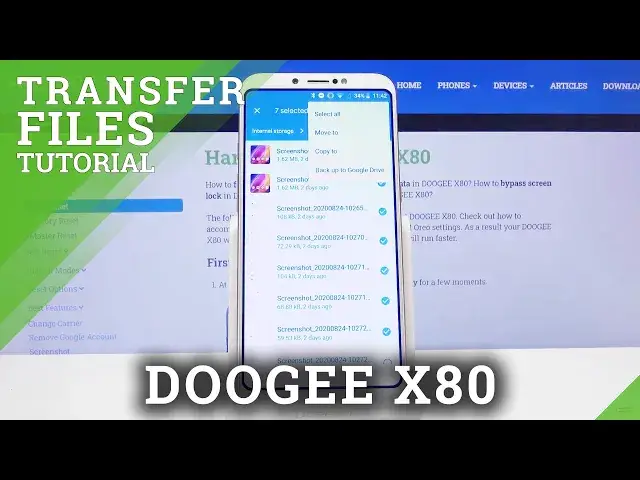
So from there once you have selected the files, tap on the three dots and in here you have
2:08
the two options move and copy. Now if you choose to move your files they will be completely removed from where they
2:14
are right now and move to a new location while copy will create additional set of the same
2:19
files and move the new ones to a new location while keeping the old ones where they are
2:23
right now. So select whichever one suits you. I'm going to go with move or apparently I'm going to misclick and tap on copy
2:32
I guess that works too. So let's from there choose the storage
2:36
Now whichever option you choose, move or copy, both of them will show up with this window
2:40
right here so select where you want to move it or copy to. And I'm going to go with the SD card because right now I'm on the internal storage
2:47
And from here, as you can see, I only have apparently three folders
2:52
So in here you can either create a new folder by tapping on a new folder or simply slap
2:56
it right here in the middle of all the other folders. So let's allow this and now they have been copied
3:04
So as you can see they are still in here. But if I go back, go to the SD card, you should see those four or seven files right here
3:16
So that is basically how you copy or move files. The process basically applies to any kind of file
3:22
It's the same exact way you do it. And yeah, so if you found this video helpful, don't forget to hit like, subscribe and thanks