0:00
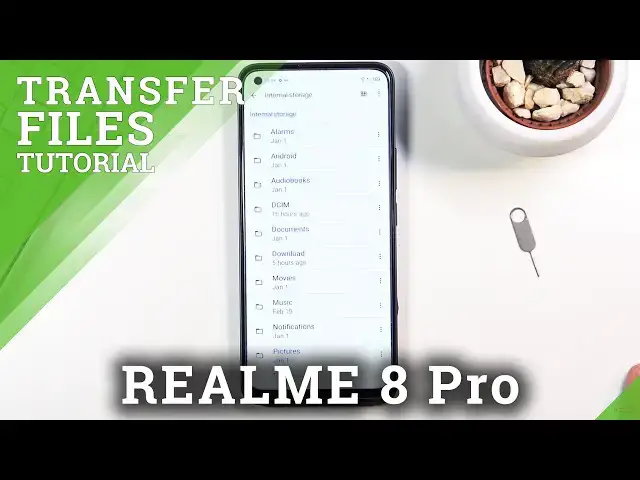
Welcome. In front of me the RealMe 8 Pro, and today I'll show you how to transfer files from one location to another
0:13
So I'm going to be transferring them from the phone to an SD card, but it can basically reverse it and transfer it from, well, the other way around
0:21
So to get started, you will want to open up the files up, which will be located in the Google folder
0:26
from here scroll down and you'll find the two different storages at the bottom
0:32
so we have the internal which is the storage of the phone and then SD card now
0:37
I'm going to start with the internal storage because that's where I think my files are
0:43
and as you can see there's a bunch of folders in here but let's be honest
0:48
most of them are not important they contain nothing so I'm just going to mention the
0:53
two or three different folders that will probably contain something. So number one will be the DCIM folder
1:01
which contains pictures, videos, and in this case, screenshots. So you can see screenshots and camera
1:09
Then if we go back, we have the downloads folder, which will contain anything downloaded As you can see in here I have an application and an image If you download images they don get saved to DCIM They need to be captured with the device to be saved there
1:23
So anything downloaded, saved will go into here, into the download folder
1:28
And I was going to say that there is also a pictures folder, but we already seen that screenshots get saved to DCIM instead of the pictures folder
1:35
So that would basically finish it up. So we have downloads and DCIM that are most likely going to have something
1:43
The rest of them primarily empty, assuming you don't have some kind of dedicated app that will save to those locations
1:51
Dedicated, meaning you downloaded some app from a Play Store and it utilizes the existence, for instance, of a music folder
1:58
But as an example, most of the music applications, as an example of the ones that stream music and allow you to also download it
2:06
usually we'll save to their own folder, completely saying now we don't like the music folder and mess around with
2:13
basically wherever you have to find those files or wherever you want to find those files they're never there but anyway
2:21
once you find your files which like I said I'm going to be using some pictures you want to select it and you can do this couple different ways
2:28
so number one if you want to select a single file or just couple I can just go and find a file itself like I have ones right here and hold the first one You can see it gets checked and then you can quickly tap on additional ones to select more
2:43
Now, if you have, as an example, an entire folder full of photos like this one
2:47
and you want to select everything, you could just kind of select like this and just start checking all of them
2:53
But honestly, there is an easier way to it, which is just select the entire folder
2:58
And that will also select everything that is inside. So whichever we go about selecting the files, it is completely up to you, and it's basically just preference
3:08
But once it's selected, on the top one at three dots and choose to either move the files or copy them
3:14
Now, depending on which one you choose, it will have a different result. So if you go with a copy, you will basically create duplicates
3:22
You will have the original ones where they are right now and new ones and a new location that you will choose to save to
3:27
Well, Move will completely remove them from where they are right now and move them to a new location
3:32
So I'm going to go with move. Now once you select one of the two options
3:35
no matter which one, you will get this pop-up. So it will ask you where you want to copy or move them to
3:41
So you have the internal storage, which is where we are right now. And then the SD card
3:46
So I'm going to just select the SD card. You could move them somewhere else on your phone if you wanted to but I just going to go with the SD card sorry so once it open as you can see as the card basically has the same folders in here and I can move it
4:03
into any of those folders that I want to I can drop it straight in the middle here or I could also
4:07
create my own a new folder if I wanted to but I'm just going to keep it simple and press
4:12
move here and as you can see it's moving or in the progress of moving and you can see in the
4:18
background internal storage DCIM and you have camera and screenshot and pay attention to it camera will disappear from here in a second
4:29
Now it looks like there was a little bit more files in there so it's taking a little bit longer time
4:34
than I would have expected and almost done and there we go as you can see camera folder just disappeared which now this folder can be found and the SD card
4:50
So camera just now and as you can see there is everything inside
4:55
So that is how you remove any kind of file from one location to another
4:59
and if you found this very helpful, don't forget to hit like, subscribe and thanks for watching