0:00
Welcome and for now I'm using a Xiaomi Redmi Go and today I'll show you how to
0:09
transfer photos, videos or any kind of file from the device to an SD card or
0:14
vice versa. So to get started you want to open up the file manager app which is
0:19
right here the yellow folder. Tap on it and here you'll see a brief overview of
0:27
all the things you can access. Before we have all the things you can
0:33
access so images, videos, documents, music apps, downloads, archives and more. And you
0:40
also have camera, screenshots, some recent things are located right below. So from
0:46
here you can for instance if you're trying to move images you could basically
0:50
go to images and select the ones that you want like so and then you have the
0:55
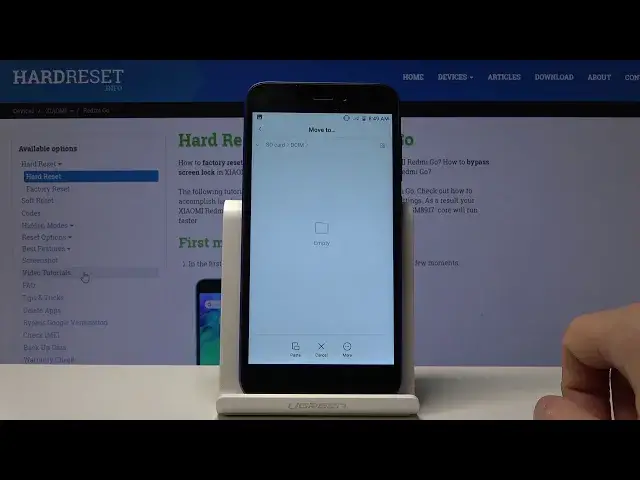
move option right here and it gives you the option where you want to move it so
1:00
you could for instance select the SD card and then it actually gives you the
1:03
folders that can move it to. So you could select for instance the DCIM that's
1:08
where normally photos are located and paste it right here. Now there's also
1:15
another way you could do this if you're actually a little bit more versed in
1:20
accessing folders and stuff like that. So if you go to the folder right here you
1:25
can see right at the top you have a folder. It will give you the two
1:30
different storages so the storage of the device and the SD card and you can for
1:36
instance go to the, where is it, that's the internal storage. You can tap on it and
1:43
then go to the SD card and from here you can do basically the same thing and just
1:48
with a little bit more or I guess a little bit less clarity. So as I would
1:54
say DCIM has all the photos which should probably have none at the moment
1:58
because we moved them. Then photos actually has screenshots so there it is
2:05
Downloads folder will have anything that you have downloaded using the web
2:10
browser and music movies and stuff like that well usually are placed by user in
2:16
the folders. So the three main folders where you would have some kind of files
2:21
would be the downloads, DCIM and pictures. So whenever you, for instance I'm
2:26
gonna from here select the screenshot. You can also select it the same way as
2:31
long as you can actually tap on it. There we go. And you can move it from here and
2:35
again gives you the same options to move it for instance the SD card and move it
2:39
to again I guess DCIM and then you press paste and there we go. So that is how you
2:47
remove it and if you found this video helpful don't forget to hit like, subscribe and thanks for watching